Drake Accounting - Match Benefit and Deduction
Article #: 18520
Last Updated: September 01, 2026

Many payroll benefits involve both an employer-paid portion and an employee-paid portion. Drake Accounting links the two using Matching Benefit on the Deductions tab. When a deduction is matched to a benefit, the employee deduction amount on the paycheck follows the linked benefit amount during payroll.
Common examples include health insurance (employer benefit + employee premium deduction) and other pre-tax or post-tax plans where the employee share is withheld from pay and should equal the employer benefit amount on the check.
Important 401(k) employer matching does not use Matching Benefit. Set up the employee 401(k) deferral as a deduction with WH. Code 401K, then configure employer matching at Employees > Options > Payroll Options tab. See Drake Accounting - 401(k) Plan Setup and Drake Accounting - 401(k) Matching.
Note Set up the employer benefit on the Benefits tab before selecting it as a Matching Benefit on the Deductions tab. Each benefit can match only one deduction.
Set Up a Matched Benefit and Deduction at the Employer Level
-
Go to Employees > Deductions & Benefits and select the Benefits tab.
-
Set up the employer benefit. Enter the Benefit Name, Amount, Taxing and Income Options, and other fields as applicable. Click Save.
-
Select the Deductions tab.
-
Set up the employee deduction (or select an existing deduction).
-
In Other Properties, select the benefit from the Matching Benefit drop list.
-
Complete the remaining deduction fields, including WH. Code if applicable. See Drake Accounting - Withholding Code Setup.
-
Click Save.
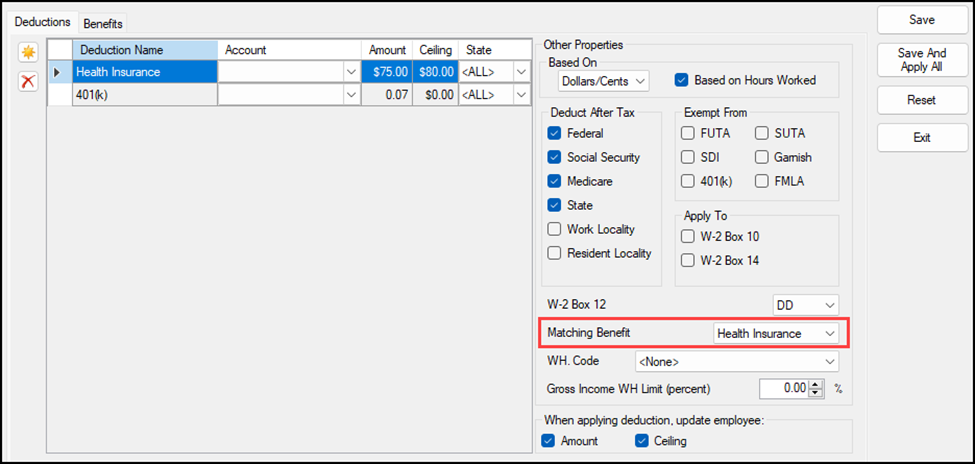
Note Each Matching Benefit selection must be unique. The same benefit cannot be matched to more than one deduction.
Assign Matched Items to an Employee
-
Go to Employees > Employee Setup and select the employee.
-
On the Benefits tab, assign the benefit from Available Benefit Name to Employee Benefit Name.
-
Click Save.
When a matched benefit is assigned to an employee, Drake Accounting automatically assigns the linked deduction on the Deductions tab. The Matching column on the Deductions tab indicates the deduction is linked to a benefit.
Note Removing a matched benefit from an employee also removes the linked deduction, and vice versa.
Verify Amounts on Payroll
-
Go to Employees > Payroll > Live or ATF.
-
Select the employee and enter payroll.
-
Enter or verify the benefit amount on the check.
-
Verify the matched deduction amount. The software sets the deduction to match the linked benefit amount. The deduction Amount field is not editable when a matching benefit exists.
Note If the deduction has a Ceiling, Drake Accounting still applies ceiling logic after matching. When the employee reaches the ceiling for the year, the software discontinues the deduction for that employee.
Update Template Amounts for All Employees
When you change a benefit or deduction template at Employees > Deductions & Benefits:
-
Make the change on the Benefits tab and/or Deductions tab.
-
Mark the Amount and/or Ceiling check boxes under When applying benefit, update employee or When applying deduction, update employee to control which fields are pushed to employees.
-
Click Save And Apply All to push template values to all employees who have the item assigned.
Caution Save And Apply All overrides custom employee amounts for the fields you marked to update. Use Employee Setup to change amounts for individual employees instead.
Troubleshooting
-
Verify Matching Benefit is selected on the Deductions tab for the deduction.
-
Verify the benefit is assigned to the employee on the Benefits tab in Employee Setup.
-
Verify the deduction shows Matching selected on the employee Deductions tab.
-
Process new payroll. Matching applies during payroll entry; it does not change amounts on checks that were already processed.
-
Go to Employees > Employee Setup.
-
Remove the benefit or deduction from the employee.
-
Re-add the benefit from Available Benefit Name. The software adds the linked deduction automatically when matching is configured at the employer level.
Save saves employer templates only. Click Save And Apply All to push template changes to employees, or update each employee individually in Employee Setup. Press F3 on the employee Benefits or Deductions tab to revert an employee amount or ceiling to the current template default.
Correct validation errors on the form before saving. See Drake Accounting - Save or Save and Apply All Button Grayed Out.