Drake Pay - Integration in Drake Tax
Article #: 18315
Last Updated: May 22, 2026

Drake Pay is fully integrated with Drake Tax so that you can accept payments from your clients (taxpayers) quickly and easily.
For an overview of Drake Pay and how to apply, see Drake Pay - Overview and Frequently Asked Questions.
Once you are approved to use Drake Pay, you must ensure that your Drake Software account is properly connected with Drake Tax before collecting payments.
-
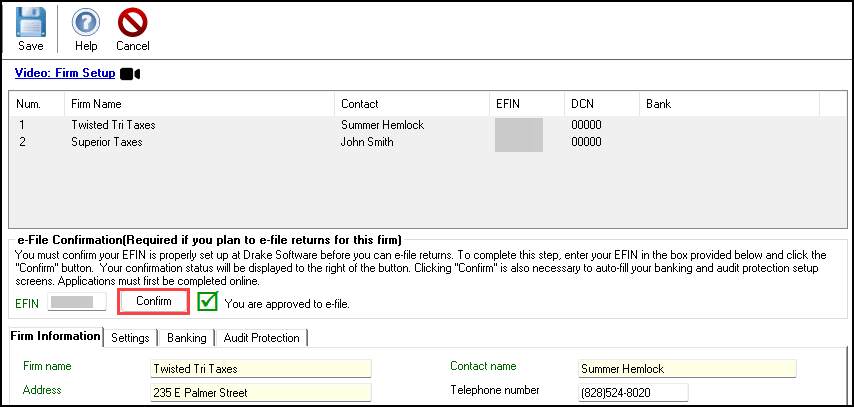
From the Home window of Drake Tax, go to Setup > Firms. The Firm Setup window is opened.
-
Select firm number 1 and click Edit (or double-click firm number 1) to activate the bottom pane of the Firm Setup window.
-
Verify that your EFIN is registered with Drake Software via a green check mark and the text You are approved to e-file. If it is not, be sure to Confirm your EFIN.
-
Click Save when finished.
Remote Payments - Payment Requests
Before you can send a payment request, you must either set up pricing or enter an amount due for preparing the return. If you have configured pricing for returns, the amount due is automatically figured after you calculate the completed return. Then for each return, complete the following steps.
-
In View/Print mode, review the client’s Bill. Make any necessary adjustments using the BILL screen or the Fee override field on screen 1.
-
If you make any changes, be sure to recalculate the return.
-
If you want to attach a copy of the bill when sending the payment request (step 8 below), select the pages that you want to include in the invoice and print it to PDF. Update the file name and save it somewhere you can easily find, such as the client's Drake Documents folder. Drake Tax - Drake PDF Printer FAQs has more information on printing select documents to PDF.
-
-
Ensure that ID information for the taxpayer and spouse, if applicable, has been entered on the IDS screen.
-
From the Data Entry Menu, click Payments to open the Drake Pay window.
-
The Amount Due flows from the client’s bill and is used to automatically complete the required Amount to Pay field.
Note Partial payments are not available at this time. The client must be able to pay the Amount to Pay in full, otherwise the request must be cancelled. If you need to establish a payment plan with your client, consider sending several smaller invoices.
-
Enter an Invoice Memo, if desired.
-
(optional; signature pads only) Select Generate E-Sign receipt, if necessary.
-
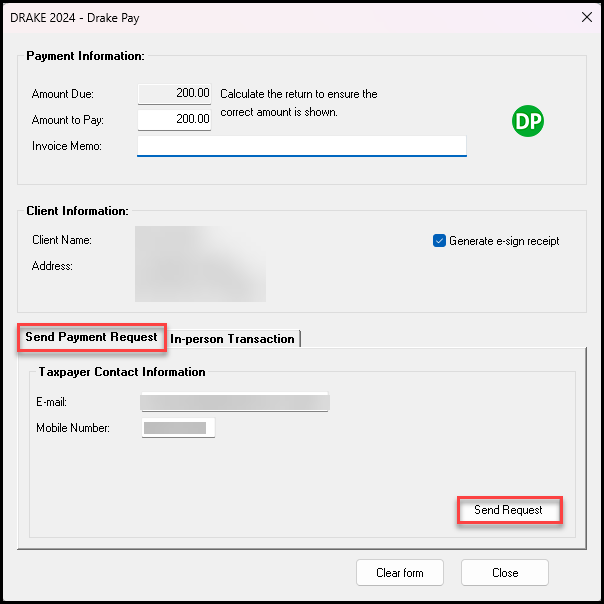
On the Send Payment Request tab, enter an Email or Mobile Number to send the invoice to.
-
(optional) Check the box Attach Invoice (PDF). If you choose this option, the Open File Dialog box will be displayed and you can browse to and select your PDF attachment.
-
The maximum PDF attachment size is 10MB.
-
The attachment must be a PDF; other file types are not supported.
-
If you hover over the name of the attachment in the window, a tool-tip appears showing the full path.
-
-
Click Send Request when finished.
The request appears on the Payment Requests tab of the Drake Pay Manager with a status of Sent.
Use the three vertical dots
 beside a pending request to view invoice Details, Resend the invoice, or Cancel a payment request. Invoices that have been paid cannot be canceled or re-sent.
 -
From here, proceed to Drake Pay - Payment Requests - Taxpayer View. Then Drake Pay - Payment Requests .
Note At this time, the Drake Tax BILL screen is not updated when the taxpayer submits a payment online via the Drake Pay payment page. This functionality will be added in a later update.
In-Person Payments - Manual Card Entry
-
Set up pricing or enter an amount due for preparing the return. If you have configured pricing for returns, the amount due is automatically figured after you calculate the completed return. Then for each return, do the following:
-
In View/Print mode, review the client’s Bill. Make any necessary adjustments using the BILL screen or the Fee override field on screen 1. If you make any changes, be sure to recalculate the return.
-
From the Data Entry Menu, click Payments to open the Drake Pay window.
-
The Amount Due flows from the client’s Bill and is used to automatically complete the required Amount to Pay field. Override the Amount to Pay, if necessary, and enter an Invoice Memo, if desired.
-
(optional; signature pads only) Select Generate E-Sign receipt, if necessary.
-
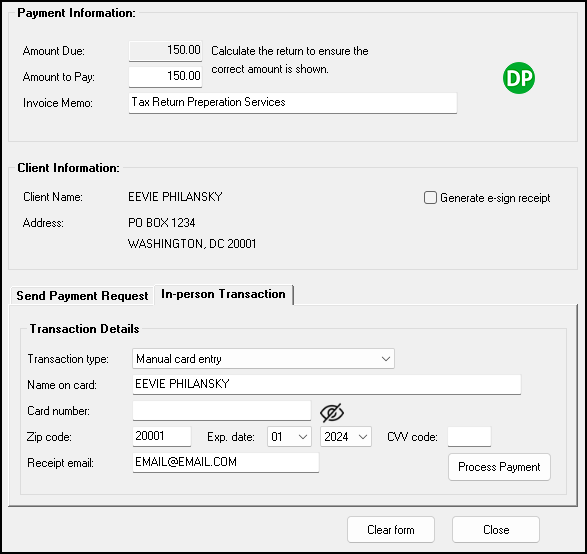
For Transaction type, select Manual card entry.
-
Enter the client's payment details. Drake Software recommends also entering the client's email so that they receive a PDF receipt of the transaction.
-
Click Pay. Successful payments are automatically carried to the BILL screen in the tax return.
In-Person Payments - POS Device
This section applies to those who have purchased a compatible POS device.
Follow the steps provided in Drake Pay - Ordering a POS Device to purchase, on-board, and update a compatible device. Then, use Drake Pay - Setting Up a POS Device. Once the device has been set up, continue below to process a payment.
-
Set up pricing or enter an amount due for preparing the return. If you have configured pricing for returns, the amount due is automatically figured after you calculate the completed return. Then for each return, do the following:
-
In View/Print mode, review the client’s Bill. Make any necessary adjustments using the BILL screen or the Fee override field on screen 1. If you make any changes, be sure to recalculate the return.
-
From the Data Entry Menu, click Payments to open the Drake Pay window.
-
The Amount Due flows from the client’s Bill and is used to automatically complete the required Amount to Pay field. Override the Amount to Pay, if necessary, and enter an Invoice Memo, if desired.
-
(optional; signature pads only) Select Generate e-sign receipt, if necessary.
-
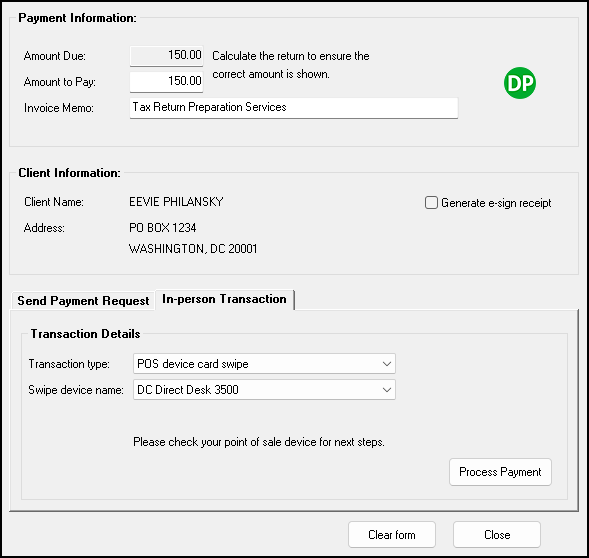
For Transaction type, select POS device card swipe.
-
Choose the applicable Swipe device name.
-
Ensure your POS device is properly connected to the Internet and click Process Payment.
-
Follow the on-screen prompts on your POS device to complete the transaction. Successful payments are automatically carried to the BILL screen in the tax return. (See Drake Pay - Ordering a POS Device for POS device information.)
Drake Refund Pay
If you have applied for, and been approved to offer Drake Refund Pay, see Drake Pay - Drake Refund Pay instead.
Issues
If you click on the Payments icon and see a sign up screen, verify your application status by going to the Drake Software Support website and selecting Products > Drake Pay. If the application is accepted, reconfirm your EFIN in Drake Tax via Setup > Firms, and be sure to click Save. Afterward, recalculate the return and attempt to process the payment again.