Drake Workflow - Customize Views, Search, and Filter
Article #: 19007
Last Updated: September 18, 2026

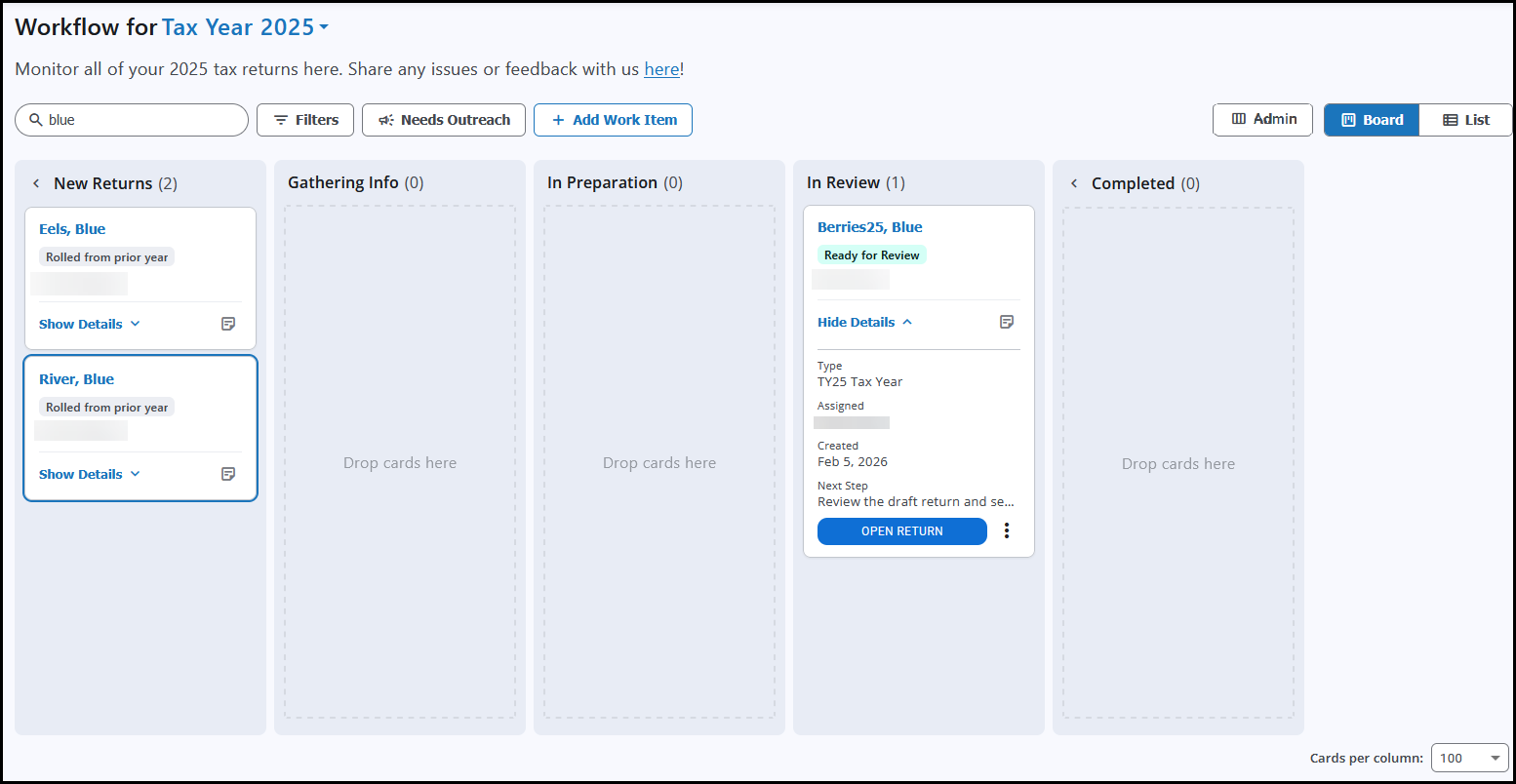
This is a kanban-style view where returns are organized by preparation stage.
Tip You can change the number of cards that are shown by selecting a value in the Cards per column drop list below the board.
List View
Click list to change to a grid format with rows and columns instead of cards. You can click column headers to sort, apply filters, and search to locate returns.
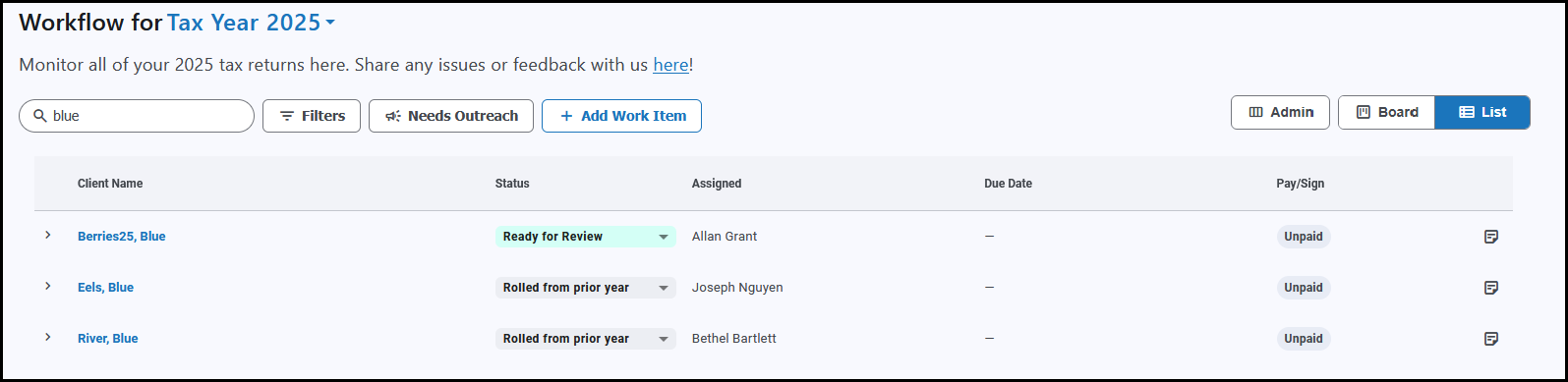
Tip You can change the number of rows that are shown on each page by selecting a value in the Items per page drop list below the board.
Custom Views
To set up a custom view, follow these steps:
-
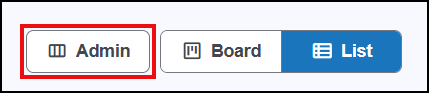
Click the My Default button beside the Board and List buttons.
-
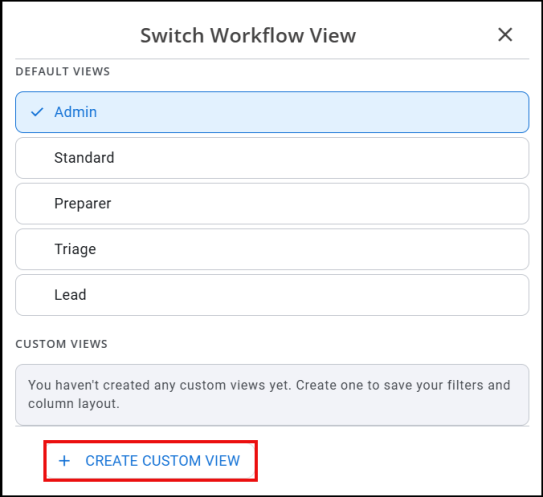
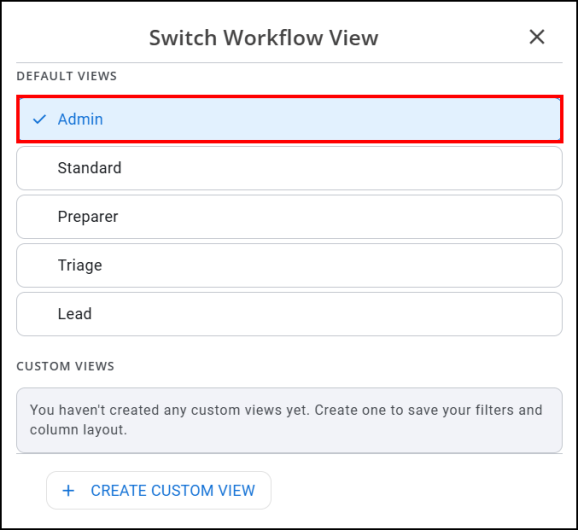
On the Switch Workflow View window, click Create Custom View.
-
Enter a View name (required).
-
Choose a Default surface, either Board or List.
-
Choose Filters (optional).
-
Select options in the Data shown in cards & columns section.
-
If you want to use the List format, select columns to add to your list and rearrange the order.
-
If you plan to use the Board format, mark the boxes to enable fields, as needed. You cannot rearrange the board order.
-
-
Click Save view.
Switch Workflow View
Admin View
For admin users, you can toggle to an Admin view of the Workflow board or list. This shows information for all preparers as a list with no filters applied. To access this, click Admin (or what you named your default custom view) and choose Admin under Default Views.
Standard
This view shows all of the returns in board-view with no filters applied.
Preparer
This view shows information for returns in the In Preparation and In Review stages.
Triage
This view shows information for returns in the New Returns and Gathering Info stages.
Lead
This view shows information for returns in the Gathering Info, In Preparation, In Review, and Completed stages.
Search
Enter a client’s name in the Search box to quickly find them on the board or list.
Filter
Click Filters to narrow the client list by selecting one or more of the following:
-
Client Type
-
Stage
-
Status
-
Due Date
-
Assigned
-
Payment Status
Toggle the Needs Outreach on or off to focus on items needing more immediate attention. The outreach list is populated if the return has a red status or a red outline (triggers for each color are discussed in Drake Workflow - Stages, Status Types, and Colors).

Tip The Needs Outreach option can be used with or without other filters to further limit results.