Drake Tax Online - Drake Portals Integration - Document Upload
Article #: 18933
Last Updated: September 17, 2026

When using Drake Tax Online, you can use Drake Portals to exchange documents securely and send the tax return for e-signatures.
This article discusses sending documents for review. See Drake Tax Online - Drake Portals Integration - Drake E-Sign Online for more detailed steps on sending signature documents.
After you have completed the Firm and Taxpayer setup (covered in Drake Tax Online - Drake Portals Integration - Setup), follow these steps to upload the return to the taxpayer's portal:
-
Open the return and click View Return.
-
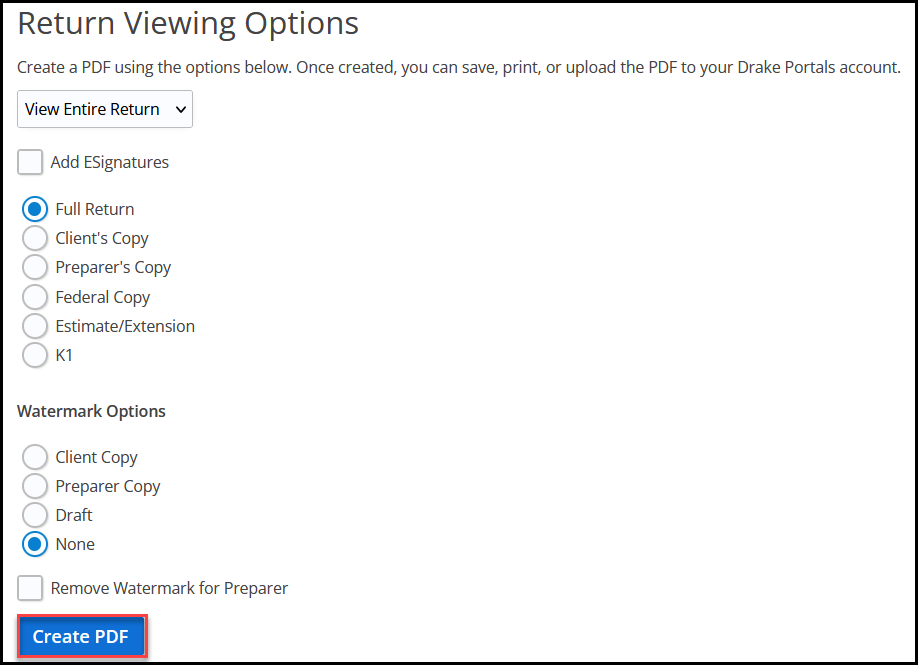
Select the applicable options.
-
Check Add ESignatures (optional).
-
Click Create PDF.
-
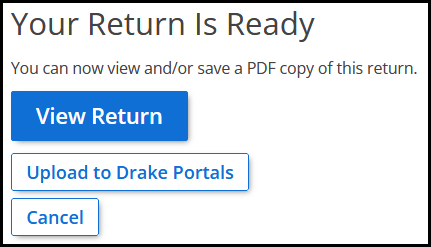
Click Upload to Drake Portals.
-
Select the applicable upload option and click Upload.
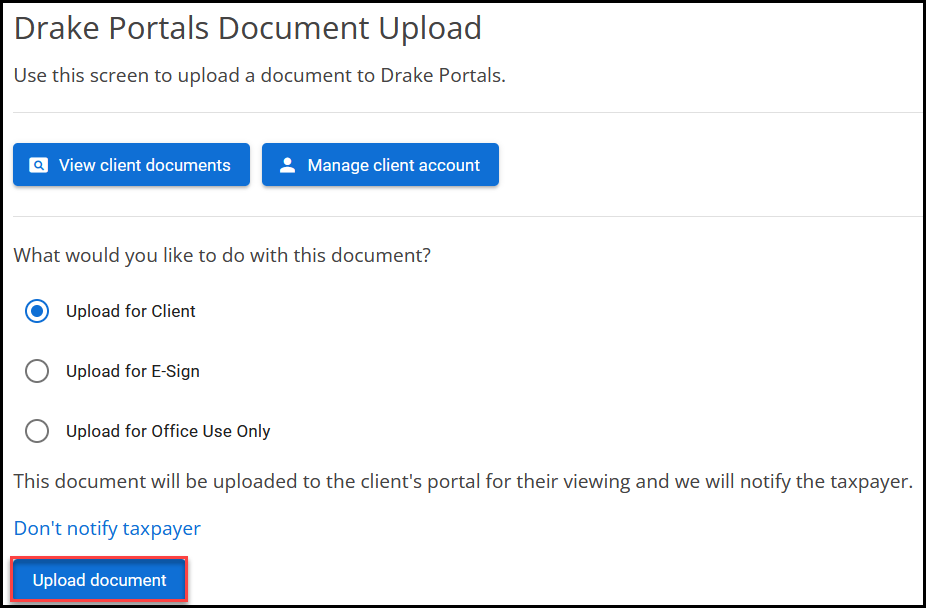
Note You can repeat the upload as many times as needed if you want to upload the same document for client, E-Sign, and office use only. You can also toggle whether to notify the taxpayer of the upload.