Drake Tax - Auto-Install and Auto-Update
Article #: 18882
Last Updated: September 28, 2026
We’ve simplified the installation and update process starting with Drake Tax 2025. For most users, the new year of Drake Tax can be automatically installed when it is ready. Once you launch the new year of Drake Tax, your settings from the prior year of Drake Tax will be transferred seamlessly. This way, you’ll be ready for the new tax year without needing to manually handle program installation or setting updates.
Important This feature is not available for some multi-site offices.
In order to use each year of Drake Tax, you must have purchased a license. If you have not yet renewed, the new version of Drake Tax will be installed in trial mode.
If you use Rightworks, see Rightworks - Installing Applications for information about program installation.
For steps on manual installation, see Drake Tax - Installation.
Auto-Install Program
-
The installer automatically launches in the background when the new year of Drake Tax is available for download.
-
The available federal and state tax programs will be installed.*
-
As soon as the installer finishes, you will see a notification window and the Drake Tax shortcut will be added to your desktop. Click Launch Now to open Drake Tax.
-
If you click Not Now, the installer will close, and you can launch the program from your desktop icon when you are ready to start working in the new year of Drake Tax.
-
Note *The prior year of Drake Tax must be installed on this computer/network for the auto-installer to run.
States will only be installed if available. In addition, only those state programs that you had installed in the prior year of Drake Tax will be automatically installed for the new year of Drake Tax. You can install additional state programs from Tools > Install State Programs as needed (once released). See below for more info about the state installation update.
State Installation
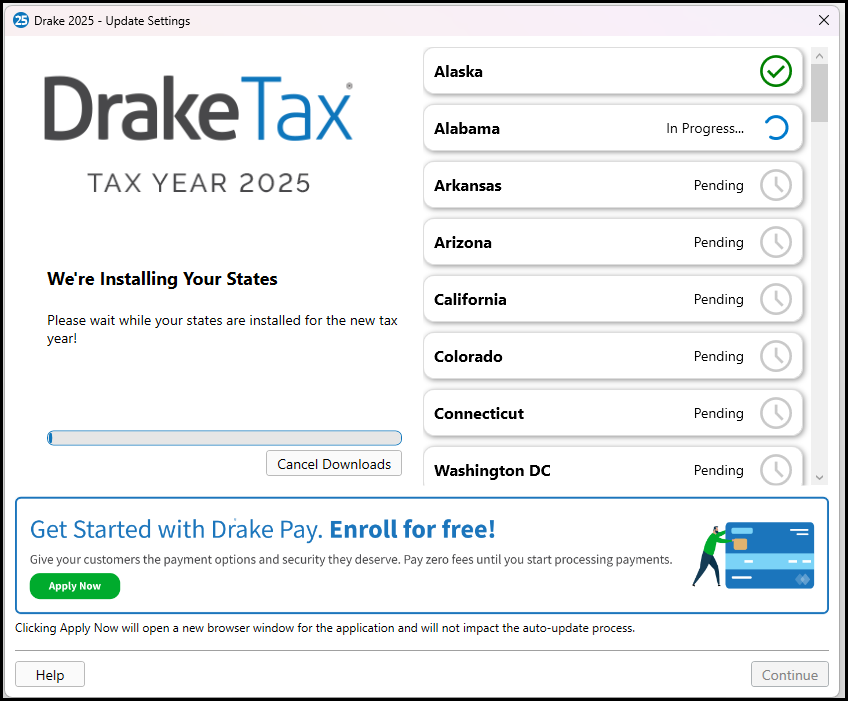
If your program auto-installed in December, the full version is now installed as part of our secure program update utility in January. When you log in, you will be prompted to install updates. Once the updater finishes, you will see the Update Settings window and your state programs will start to install. Click Continue when you see State Installation Complete.
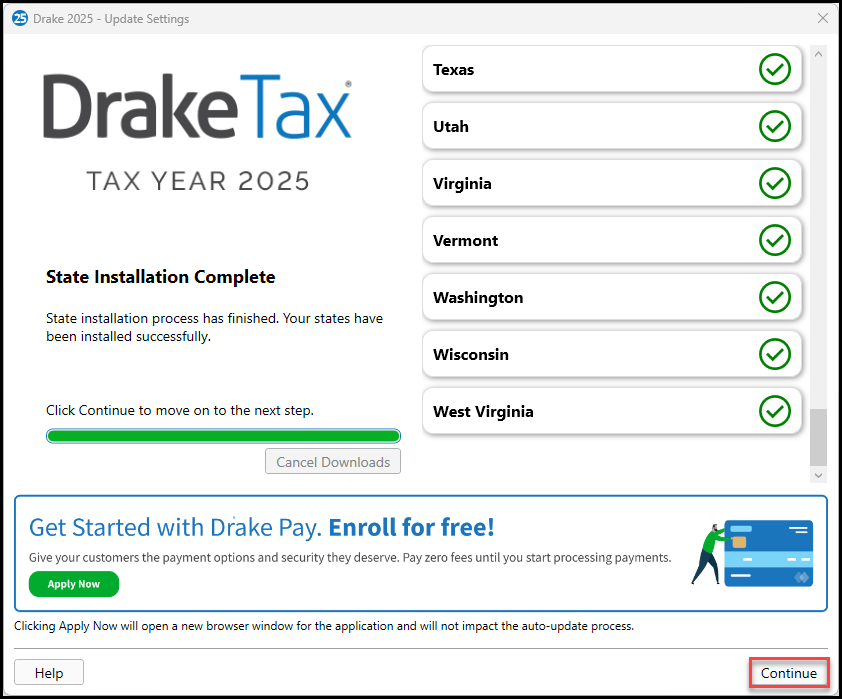
The state settings will then be updated. Click Continue when the update has finished.
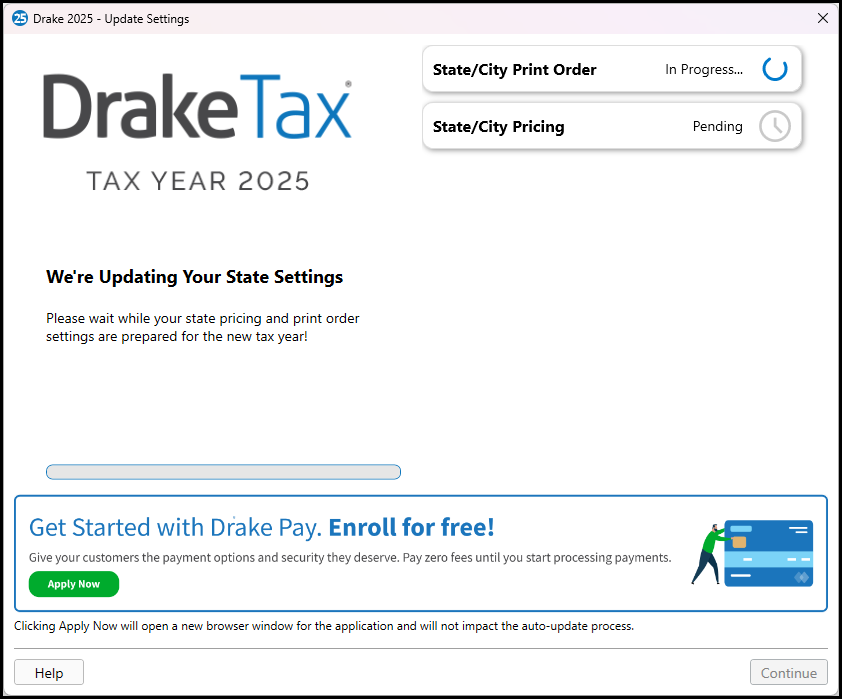
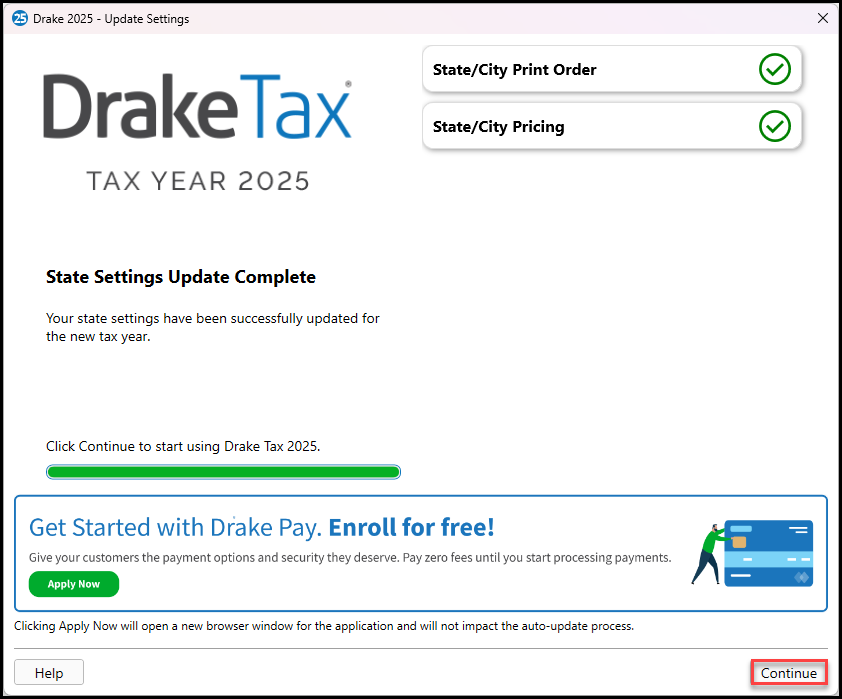
Only those states that were used in the prior year of Drake Tax are auto-installed. If you need to install additional states, go to Tools > Install State Programs after logging in.
Auto-Update Prior-Year Settings
The first time you open the new year of Drake Tax, you will be prompted to agree to the license agreement and set up your administrator login. Then, your settings will start updating from the prior year of Drake Tax. See Drake Tax - Auto-Update Prior-Year Settings for details.