Drake Tax - Firm Setup and e-File Confirmation
Article #: 14347
Last Updated: August 13, 2026

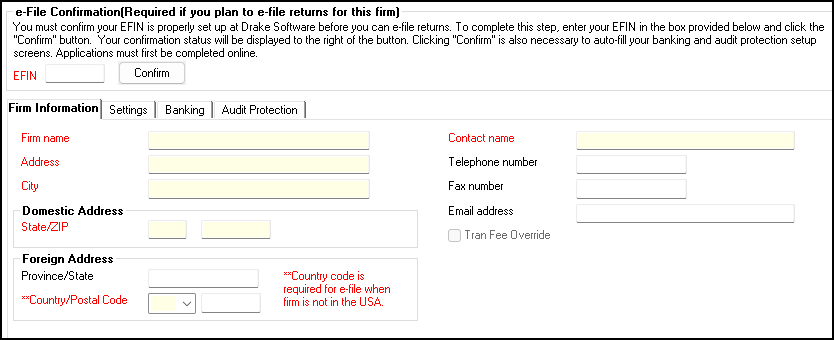
After completing Setup > ERO, you must complete your Firm set up by going to Setup > Firms. See https://support.drakesoftware.com/Video/firm-setup for more information about the required firm information.
Your active Firm must be in the first line under Setup > Firms.
On the Firm Information tab, all fields with red text must be completed before the screen will allow you to save your progress.
Several states also require the Telephone number and Email Address to be completed on the Firm Information tab.
Important Some states do not allow the firm/preparer address to exceed 30 characters. If you receive an EF Message regarding this, the firm/preparer address will need to be abbreviated to satisfy the 30 character rule.
Indiana (IN) - EF Message 1234
Maryland (MD) - EF Message 0047
Next, complete the e-File Confirmation, by taking the following steps:
-
On the Firm Setup screen there is an e-file confirmation section just below the list of firms that have been set up. In this field, enter the EFIN number that has been registered with Drake and click Confirm.

-
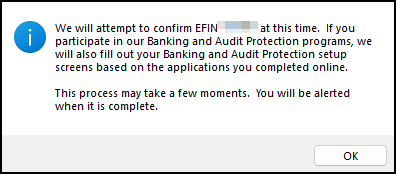
A message screen appears showing that communication has begun and may take a few moments.
-
A status window indicates the registration status
-
If successful:
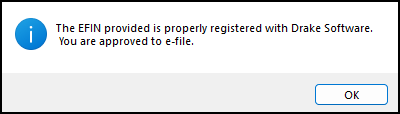
You will receive an alert that the EFIN was properly registered with Drake.
You will see a green check next to the EFIN number in the e-file confirmation section.

Be sure to click Save after your e-file confirmation has been approved.
-
If unsuccessful:
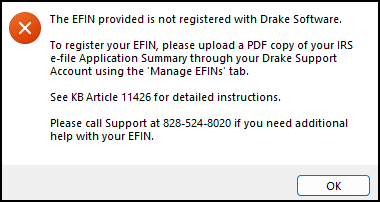
You see an error message; click OK. See EFIN Registration or Change for the steps on registering the EFIN with Drake.
A red X appears next to the EFIN in the e-file confirmation section of the Firm Setup screen.

If, after sending the EFIN Application Summary to Drake Software, you are still unable to get an approval, please contact Drake Support at (828) 524-8020.
1040 EF Message 5673
EF Message 5673 is produced when required firm address information is missing or invalid. Review the firm selected on screen 1 or information entered on screen PREP, as applicable.
Required address information includes:
-
Street address
-
City
-
State and ZIP for U.S. addresses
-
Country for foreign addresses
For the firm's street address, valid characters are A–Z, 0–9, hyphens, forward slashes, and spaces. City fields allow A–Z and spaces. The state must be a valid U.S. state abbreviation, and the ZIP must contain five or nine digits.