Drake Hub - Multi-Factor Authentication (MFA) Settings
Article #: 18917
Last Updated: September 15, 2026

With Single Sign On (SSO), your account is protected by multi-factor authentication by default. If you do not make an additional selection to enable MFA via an authenticator app or via SMS (text message), you will authenticate your login by entering a code that you receive via email. You can review your Multi-Factor Authentication settings by following these steps:
-
Log into Drake Hub.
-
Click the profile icon at the top right.
-
Select Manage my Account.
-
Click on the Multi-factor Authentication tab.
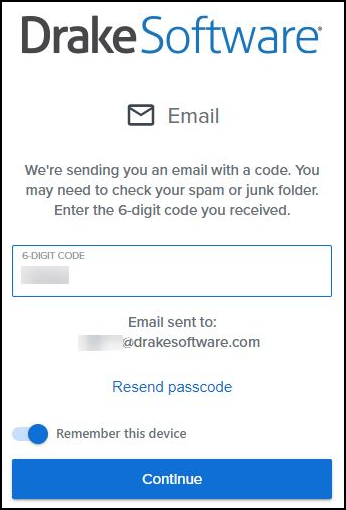
MFA via email is enabled by default with single sign-on. An email is sent to verify your identity when you log in from a new device or browser. You can choose to skip this additional step by selecting Remember this device after entering the code.
Note If you prefer, you can choose to receive your code via SMS (text message), or use an autheticator app instead, see below for details.
-
An authentication passcode is 6 numeric characters in length and is only valid for 30 minutes.
-
If you do not receive an email, check your spam, junk, and other folders. The email comes from noreply@auth.drakesoftware.com which is sometimes flagged or sorted by your email provider.
-
You may need to add noreply@auth.drakesoftware.com to your email provider's safe senders list. Steps will vary depending on the email provider being used.
SMS Verification (via Text Message)
-
Log into Drake Hub.
-
Click the profile icon at the top right.
-
Select Manage my Account.
-
Click on the Multi-factor Authentication tab.
-
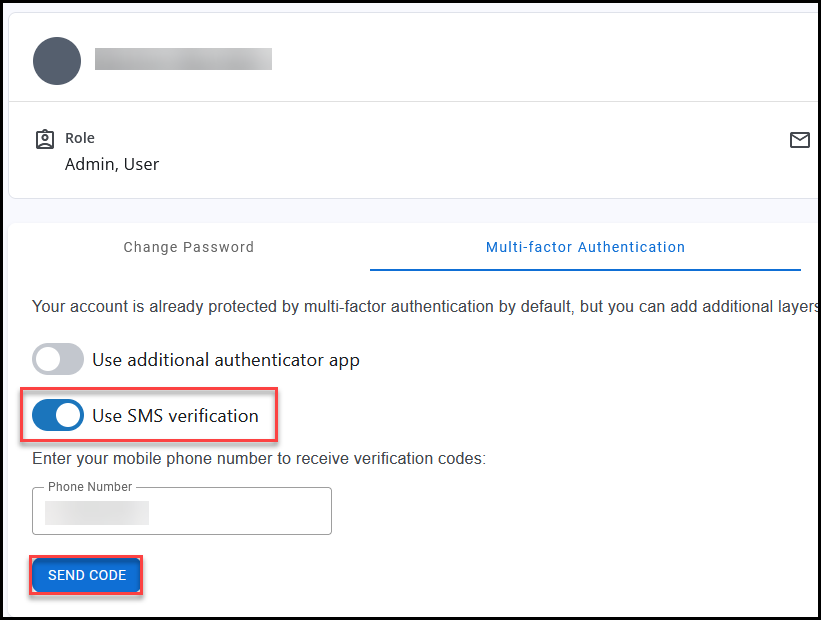
Toggle the option Use SMS verification.
-
Enter your mobile phone number in the Phone Number field.
-
Click Send Code.
-
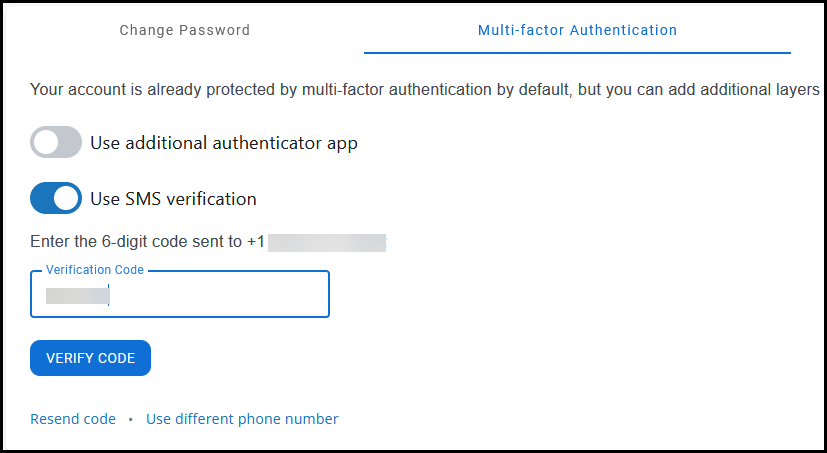
Check your mobile device for a text message with a 6-digit code. Enter that code in the Verification Code box and click Verify Code.
-
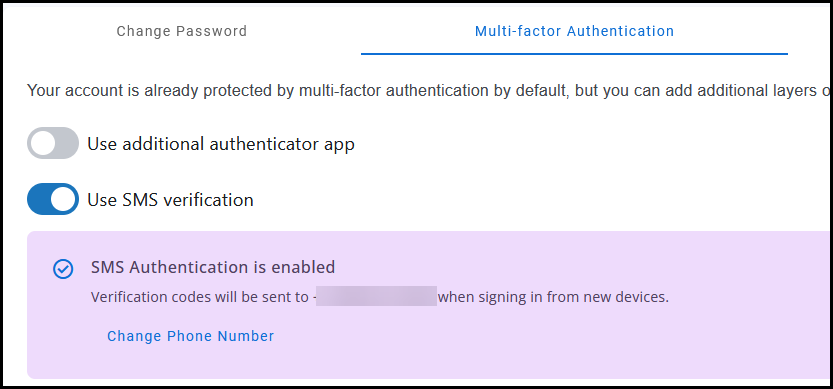
You will see a notice that SMS Authentication is enabled.
-
If your phone number changes, click Change Phone Number to update the number associated with the SMS MFA.
-
-
The next time you log in, if authentication is required, you will be prompted to enter the 6-digit code sent via text message.
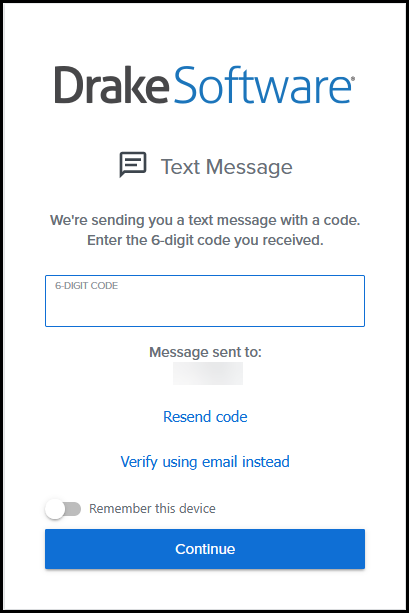
Note You can click Verify using email instead and choose to receive the code via email, if needed. Once verification via SMS is enabled, however, it is the default MFA option over email.
Authenticator App
Setup
You can configure Multi-Factor Authentication with an authenticator app on your mobile device by following these steps:
-
Log into Drake Hub.
-
Click the profile icon at the top right.
-
Select Manage my Account.
-
Click on the Multi-factor Authentication tab.
-
Toggle the option Use additional authenticator app and follow the prompts to complete setup.
Recovery
If you enabled the use of an authenticator app, and lose or change your MFA device, any staff member with the Admin role can disable two factor authentication by following these steps:
-
Log into Drake Hub.
-
Go to Staff and select the staff member.
-
Click the menu button and select Disable Two Factor Authentication.
-
The staff member can configure MFA on their new device the next time they log in.
Tip If you are planning to change MFA devices, log into Drake Hub and toggle the option Use additional authenticator app to off prior to changing devices. Once you switch to your new device, you can toggle the option back on and configure the app for the new device.
If there is only one user with the Admin role, and that user loses their MFA device, they will need to contact Drake Support for assistance at (828) 524-8020.
Important Once MFA via an autheticator app is enabled, that is the default MFA option unless it is toggled off.