

Last Updated:
Article #: 10385
Drake Hub
To enable or disable access to reports, see the “Configure” section of Drake Hub – Staff
Important Access to reports must be configured for each Staff Member.
Drake User Manager
To enable or disable access to reports:
-
Log in to the Drake User Manager.
-
Select Manage Accounts and locate the user for whom edits are needed.
-
Click the Application Access tab.
-
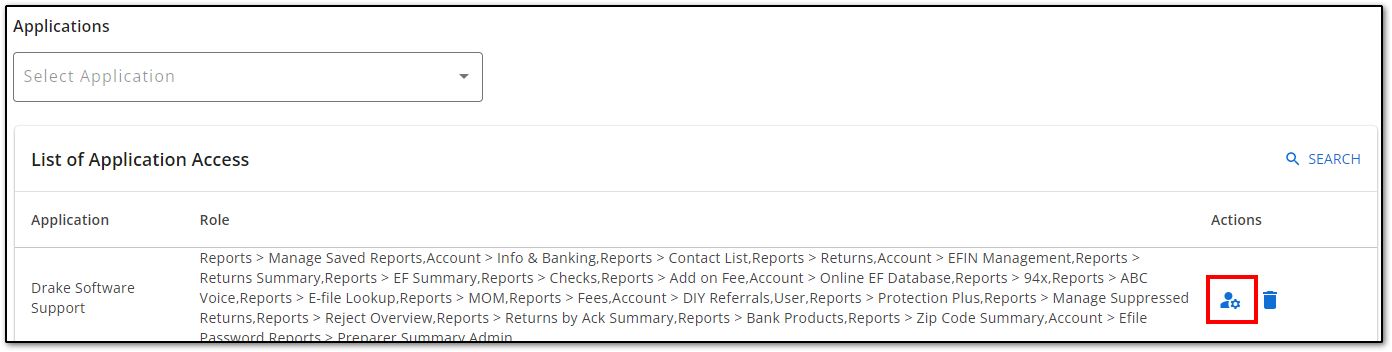
In the row that says Drake Software Support, click the edit icon under the Actions column.
-
Make changes to the roles and click Submit. Note that the different reports are able to be enabled or disabled individually.
-
If you select Admin, the user will have access to all features and reports; you would have to remove the Admin role to limit access to other items.
-
Important Access to reports must be configured for each user.
No Access Message
If a user does not have permission to access a report, they will still see it on the Report menu, however, they will get the following message when they attempt to select it:
“You do not have access to this report. Please contact your administrator for assistance.”