Drake Tax Online - Tax Planner
Article #: 18968
Last Updated: April 14, 2026

The Drake Tax Planner is designed to help you assist your clients in planning for the future. By comparing a client’s current tax situation to different scenarios that could occur—such as marriage, the birth of a child, buying or selling a house, or change in income—you can see how these changes may affect their finances and tax liability. Because scenarios use the same Drake Tax Online menus and screens, creating and managing planning scenarios is quick and intuitive.
Watch the video Drake Tax Online - Tax Planner for a demonstration.
Tax Planner Availability
Fully Online (DTO)
You can create and edit tax planner scenarios entirely online for:
-
1040 - Individual Returns
-
1120-S - S Corporation Returns
-
1065 - Partnership Returns
Start Online and Edit in the Drake Tax Desktop Integration
For the following, scenarios are created and reviewed online, but edits must be made using Drake Tax Desktop Integration:
-
1120 - C Corporation Returns
-
1041 - Estate & Trust Returns
-
990 - Exempt Organization Returns
-
706 - Estate Tax Returns
Not Available
-
Tax Planner is not available for state returns.
-
Only 2025 scenarios are available at this time.
Creating a Scenario
Follow these steps to create a new tax planning scenario and compare the results.
-
Open a client's return.
-
Click the Tax Planner icon.

-
On the Create a Tax Planner Scenario window, enter a Scenario Name (up to 50 characters), and click Create Scenario.
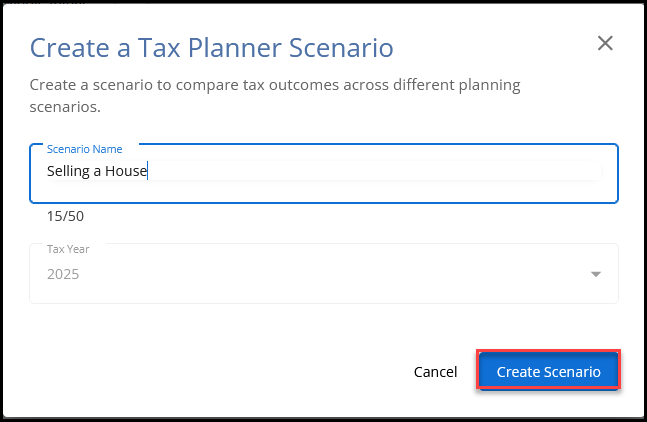
-
The window opens to the tax planner version of data entry. You will know you are in Tax Planner mode when a blue border is displayed around the window.

-
Make the desired changes to the return.
-
If you are in a 1120, 1041, 990, or 706 return, after creating the scenario, click Open Return in Desktop to make your changes. Use the Save/Sync button to ensure your changes are synced, then click Return to Web to finish the comparison.
-
-
You can use the Quick Calc (1040 only) and View Return functions as needed.
-
The return PDF has a TAX PLANNER watermark.
-
-
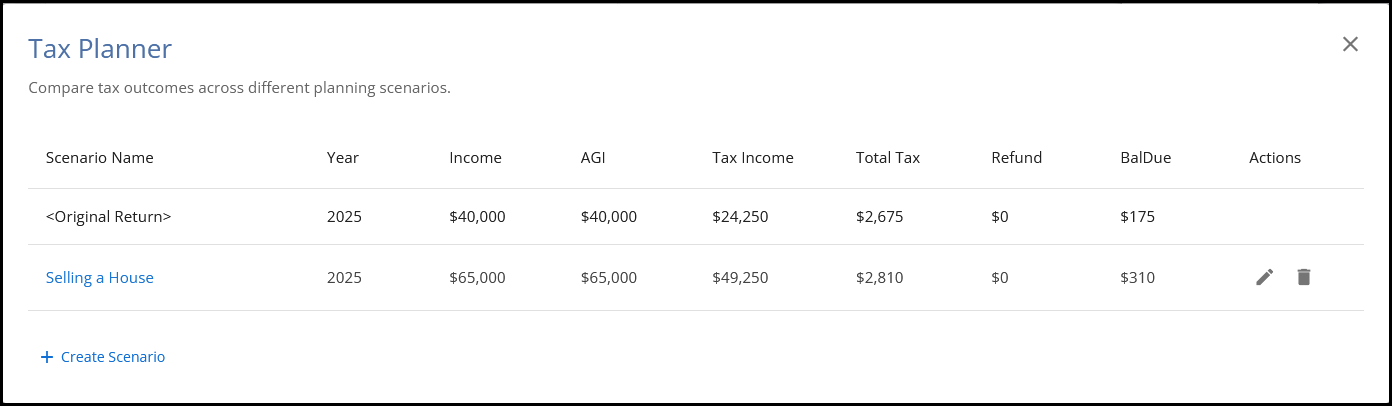
Click the Tax Planner icon to compare tax outcomes, create a new scenario, delete a scenario, or edit scenarios that you previously created.
-
You can also access this list by clicking on the scenario name at the top of the window (for example, Tax Planner > Selling a House).
-
-
Click Exit Tax Planner when you are ready to return to the original return. Any changes made in Tax Planner mode are not applied to the original return. If you choose to implement those changes, you will need to re-enter them in the original return.
Important If you make changes to the original return after creating a scenario, those updates will not be reflected in any scenario created before the change. Each new scenario captures the original return as it exists at the time the scenario is created. To incorporate subsequent updates, you must either create a new scenario or manually update the existing scenario to include the changes made to the original return.
Notes
Each scenario looks and behaves like a normal return, with the following differences:
-
The main data entry menu displays Tax Planner > [Scenario Name].
-
The entire window has a dark blue outline to indicate that you are in Tax Planner mode.
-
When you view the return, documents display a Tax Planner watermark (except for letters).
-
Tax Planner scenarios do not update from year to year.
For more assistance, contact Drake Tax Online Support at (828) 349-5727.
Drake Tax Online - Quick Start Guide