

Last Updated:
Article #: 18955
Single Return
To check the e-file status of a single return, open the return and click on the Return Status tab.
Client Status Report
Run a report to see the status of one or more returns by following these steps.
-
Exit the return.
-
Click on Reports > Client Status (at the top right of the Drake Tax Online dashboard).
-
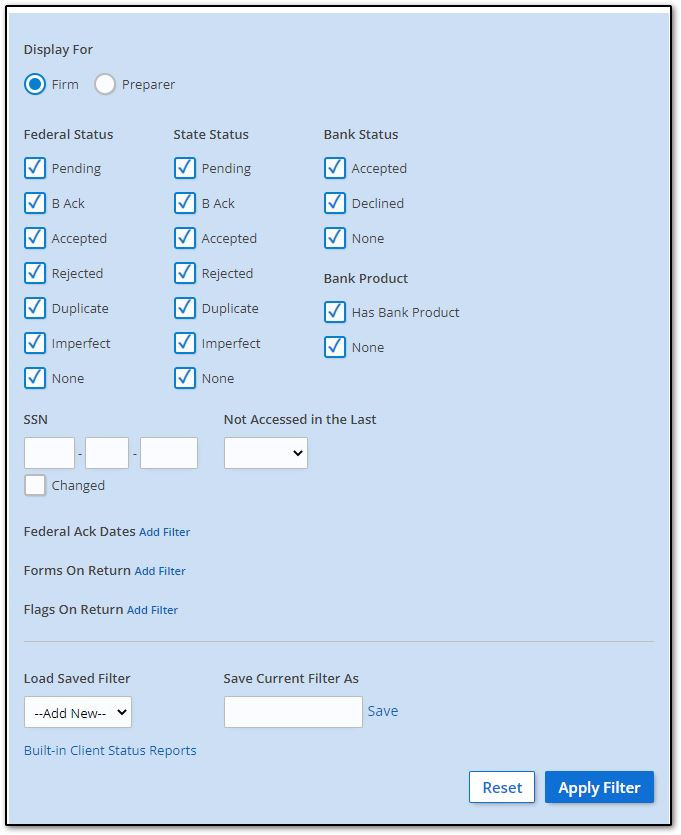
Select options to limit your results, or enter a single SSN in the SSN field.
-
Click Apply Filter.
-
The results will be displayed at the bottom of the window. You can sort the list by a column header or download the results as a CSV file.
-
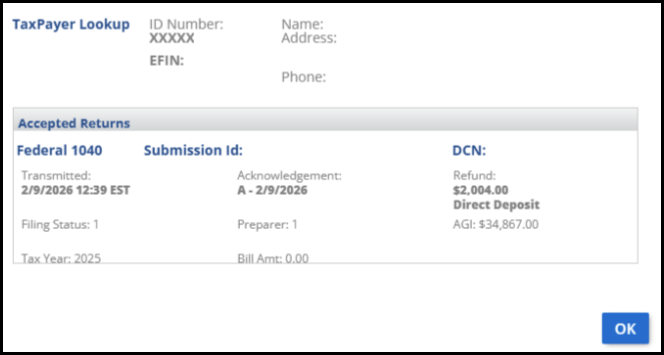
To the right, select the […] menu to display the Taxpayer Lookup window that shows transmission info, including the Submission ID.
Note Filters may vary depending on office setup.
EF Database
To access the Online EF Database from Drake Tax Online, from the year-specific tax return dashboard, click Tools > EF Database. This will redirect to the Drake Software Support website E-file Status Lookup report. To see the e-file status, follow these steps:
-
Select the Tax year from the drop list.
-
Enter the taxpayer’s last name, SSN, or EIN in the search box.
-
Click Search.
Other Online Reports
From within the Drake Software Support website, click Reports on the left to access additional report options.
Available Reports
-
Add-on Fees
-
E-file Status Lookup
-
Search by last name, SSN or EIN. Only information about the filer’s return e-file status is displayed (for example, shows Federal 1040 Accepted 1/1/2026, Refund $200.00). More detailed return data is displayed when running the Returns report (below).
-
-
Returns
-
Allows you to list pending, accepted, and rejected state and federal returns, as well as extensions. Queries can be limited to a date range, data can be sorted, and filters can be saved for future reference. Once the query is submitted, you can search by name and the results display more detailed information regarding transmissions. You can also choose to print the taxpayer results, including the submission ID, and get Form 9325 from this report.
-
-
Bank Products
-
Queries can be limited to a date range, data can be sorted, and filters can be saved for future reference.
-
-
Checks
-
Allows reporting on checks by check status (printable, pending, and cleared). Queries can be limited to a date range, data can be sorted, and filters can be saved for future reference.
-
-
Fees
-
Reports on all of the fees (prep fees, bank fees, etc.) that are charged throughout a transaction. Reports may be filtered by fee type and by date.
-
-
MOM
-
The MOM Menu is for Multi-Office Manager (MOM) reports. MOM is the online version of the Client Status Manager. It is designed for the multi-office environment and allows you to track the work flow of multiple offices, providing a snapshot of your entire business.
Note Companies with multiple EFINs that wish to use MOM must have an EFIN hierarchy configured and the individual offices must set the software to transmit CSM data (Setup > Options > EF tab; under Session Options, select Transmit return data to Drake for multi-office web reports, and click OK to save changes).
-
-
Contact List Report
-
provides a contact list of your filed clients
-
-
94X Report
-
refers to 94x filings made from Drake Accounting
-
-
ABC Voice File Download
-
is a component of software used to provide automated phone status reports for tax preparers (for more information, call Versicom at (937) 438-3700).
-
-
Suppressed Returns
-
Any suppressed returns will be listed here.
-
-
EF Summary
-
Preparer Summary
-
Zip Code Summary
-
Returns Summary
-
Returns by ACK Summary
-
Reject Overview
-
Protection Plus Enrollments
-
Protection Plus Summary
Report Column Definitions
The following selections are available in online database reports. Not all selections are available for all reports.
| Column Title | Description |
|---|---|
| Accts Paid |
The number of federal individual return transmissions where some preparer fees were deposited |
| ACK Code | The status of the return |
| Ack Date | The date of the return acknowledgment as specified by the IRS/state |
| Acptd | The number of accepted federal returns |
| Acptd Fed | The number of accepted federal return transmissions |
| Acptd Pct |
The percentage of federal individual return transmissions that were accepted that transmission |
| Add-On Fee | The add-on fee deposited for this return |
| Address | The address of the primary and secondary (if applicable) taxpayer(s) |
| Amount | The date when the ERO transmitted the return to Drake Software |
| Amount | The date when the ERO transmitted the return to Drake Software |
| AOF Accts Paid |
The number of federal individual return transmissions where fees were paid and add-on fees were completely paid |
| AOF Under Funded |
The number of federal individual return transmissions where fees were paid and add-on fees were not completely paid |
| Avg Fee |
Average Fees deposited, calculated by dividing Fees Deposited by Accounts Paid |
| Avg Refund | The average refund amount for accepted or rejected federal return transmissions |
| Avg Refund | The average refund of the above returns |
| Bank | The number of accepted federal return transmissions with an associated bank product |
| Bank Acptd |
The number of accepted federal returns with accepted bank products |
| Bank Pct |
The percentage of the accepted federal individual return transmissions with an associated bank product |
| Bank Pct Acptd |
The percentage of accepted federal returns with bank products that Prep Avg Fee accepted bank products |
| Bank Product | The current bank product associated with the return |
| Bank Total |
The number of accepted federal returns with bank products |
| Bill Total | The bill total of the return |
| Bill Total | The Bill Total of the return |
| Cell Phone | Cell Phone Number |
| City | City |
| Clear Date | The date when the bank cleared the check |
| Current Type | The type of bank product offered |
| DCN | The Declaration Control Number |
| DD Date | The date when the preparer fees for this return were deposited |
| Deposits | The total amount deposited thus far for this bank product |
| EFIN | The Electronic Filing Identification Number |
| Email Address | The email address of the primary taxpayer |
| Fees | The sum of the preparation fees, document preparation fees, and e-filing fees |
| Fees Dpstd |
The sum of the deposited preparers’ fees |
| Hide Return | Hide return from search results |
| Last 4 SSN | The last four digits of the primary taxpayer’s Social Security Number |
| Loan Status | The status of the bank product |
| Name | The name(s) of the primary and secondary (if applicable) taxpayer(s) |
| Number | Check Number |
| Number | The check number |
| Original Type | The type of bank product requested |
| Pct Acptd |
The percentage of the Total Returns that were accepted |
| Pending | The number of pending federal returns that were not accepted in the specified date range |
| Phone 1 | Phone 1 number |
| Phone 2 | Phone 2 number |
| Potential Rev |
Potential Revenue, calculated by multiplying Average Fee by Number Accepted |
| Prep | The Preparer ID |
| Prep Accts Paid |
The number of accepted federal returns with preparers’ fee deposits |
| Prep Acptd Pending Total |
The sum of preparation fees, document preparation fees, and e-filing fees for accepted and pending federal returns |
| Prep Acptd to Pending |
The percentage of preparers’ fees associated with accepted federal returns versus the preparers’ fees associated with accepted and pending federal returns |
| Prep Avg Fee |
The average preparation fee, calculated by dividing the Prep Total by the Bank Total |
| Prep Dpstd |
The sum of preparers’ fees deposits associated with accepted federal returns |
| Prep Fees | The sum of the deposited preparers’ fees |
| Prep Pending Total |
The sum of the preparation fees, document preparation fees, and e-filing fees associated with pending federal returns |
| Prep Total |
The sum of preparation fees, document preparation fees, and e-filing fees for accepted federal returns |
| Preparer Fees | The preparers fees deposited for this return |
| Print Date | The date when the check was printed |
| Prior Number | The number associated with the prior check if this check is a reprint |
| Ratio | The percentage of the hierarchy’s deposited preparers’ fees that this preparer received |
| Ratio | The percentage of the hierarchy’s total refund that this ZIP code receives |
| Record Type | The record type of the return: 0 – Fed individual (1040-type) 1 – State individual (includes state individual extensions) 2 – No longer used 3 – Federal extensions 4 – Fed and state business 5 – FBAR/FinCen |
| Refund Amount | The refund amount of the return |
| Refunds | The sum of the refunds |
| Reject Code #1 | The reject code for the return |
| Reject Code #2 | The second reject code for the return |
| Reject Code #3 | The third reject code for the return |
| Reprint Count | The number of times the authorized check disbursement has been reprinted |
| Returns | The number of returns |
| Rjctd | The number of federal returns that were not accepted in the specified date range |
| Service Bureau Fees | The service bureau’s fees deposited for this return |
| SSN Last 4 | The last four digits of the primary taxpayer’s Social Security Number |
| State | State |
| Tax Year | The tax year of the return |
| Total | The total number of federal individual return transmissions that were accepted or rejected |
| Total Returns |
The total number of federal returns transmitted |
| Trans Date | The date when the ERO transmitted the return to Drake Software |
| Transaction Date | The date when the ERO transmitted the return to Drake Software |
| Type | The type of return |
| ZIP | ZIP code |
IRS Acceptance Alert
See Drake Tax Online – Online Reports – IRS Acceptance Alert for details.
No Access Message
If a user does not have permission to access a report, they will still see it on the Report menu, however, they will get the following message when they attempt to select it:
“You do not have access to this report. Please contact your administrator for assistance.”
Tip To enable or disable Staff Member access to reports, see the “Configure” section of Drake Hub – Staff