Drake Tax Online - Drake Portals Integration - Drake E-Sign Online
Article #: 18932
Last Updated: September 17, 2026

When using Drake Tax Online, you can use Drake Portals to send the tax return for e-signatures.
Note Signature pads are not supported in Drake Tax Online, either on the online site or in the Drake Tax Desktop integration.
This article discusses uploading e-signature documents. See Drake Tax Online - Drake Portals Integration - Document Upload for more detailed steps on sending other documents.
After you have completed the Firm and Taxpayer setup (covered in Drake Tax Online - Drake Portals Integration - Setup), follow these steps to upload the signature documents to the taxpayer's portal:
-
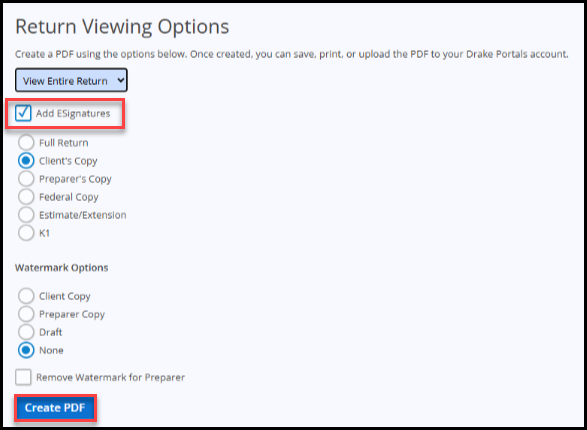
Open the return and click View Return.
-
Select View Entire Return in the drop list.
-
Check Add ESignatures.
-
Select the copy format (i.e., Client's Copy) and watermark options (if applicable).
-
Click Create PDF.
-
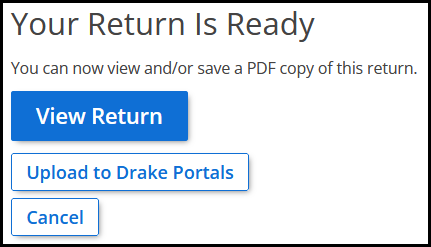
Click Upload to Drake Portals.
-
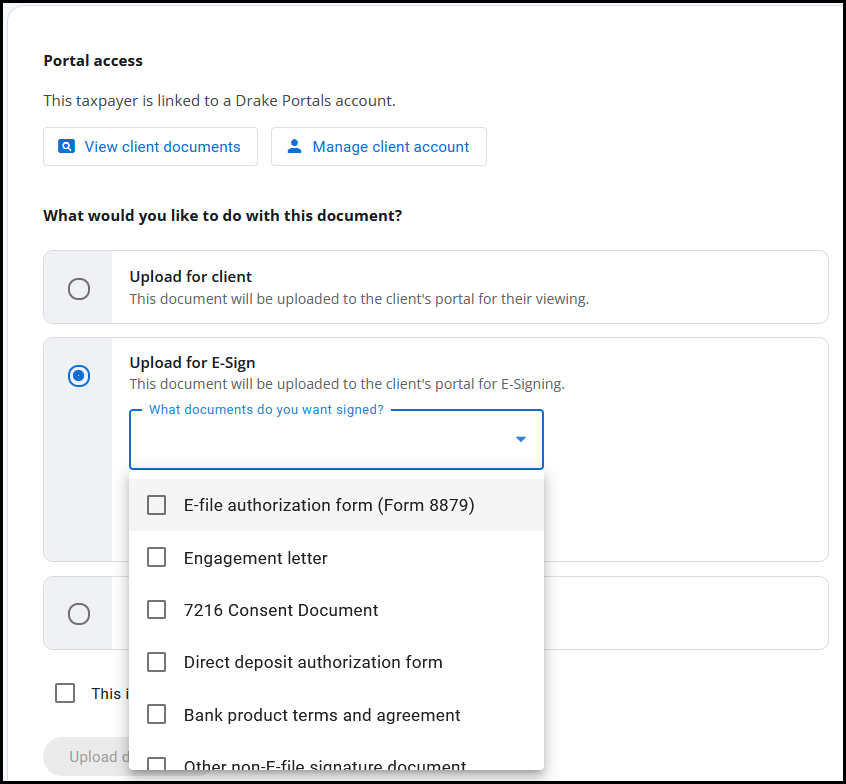
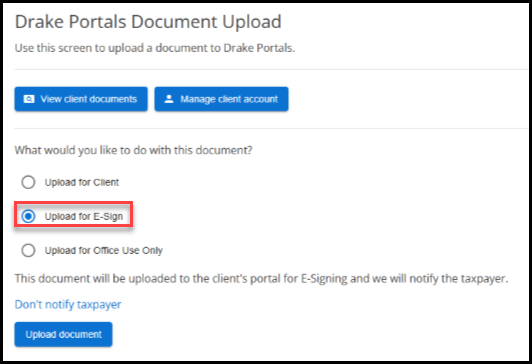
Select Upload for E-Sign radio button.
-
Select the document types that you want signed from the list. The types that you select determine which type of E-Signature Event is used.
-
Click Upload document.
Taxpayer Steps
The taxpayer can sign the return using the steps listed in Drake Portals - Drake E-Sign Online (Taxpayer View).