

Last Updated:
Article #: 16972
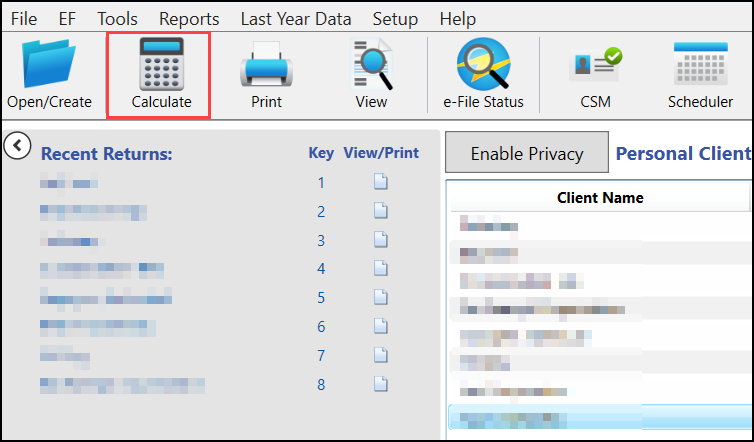
You can calculate multiple returns at once (in a batch). This process can be used to refresh your PCM or to calculate a set of returns, or all returns, as needed. To do this, click the Calculate button at the top of the main screen of the software.
Caution Calculated returns will appear in EF>Select Returns for EF if there are no EF messages. Be sure to review every return for accuracy prior to transmitting.
Select the clients you want to calculate by double-clicking them. This will put their name on the right side of the window. Then, click next to calculate them.
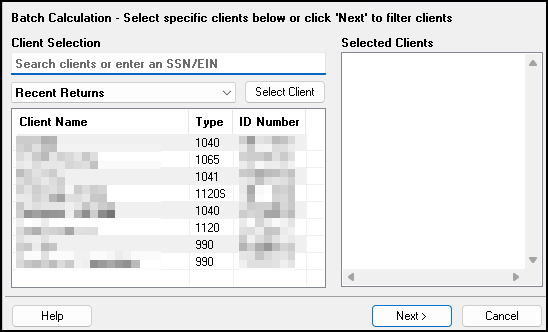
If you want to calculate all of your clients, do not select any on this window. Clicking next will then open a filter selection window followed by a search conditions window allowing you to narrow down the batch calculation.
Calculation Results
When you calculate a return from data entry, the Calculation Results window is displayed by default. To change how the Calculation Results window appears, use the Pause option for calculation drop list on the Calculation & View/Print tab of Setup > Options.
Calculation Summary
The Summary tab has four main sections: EF Status, EF Messages, Return Notes, and Fee Types and Amounts.
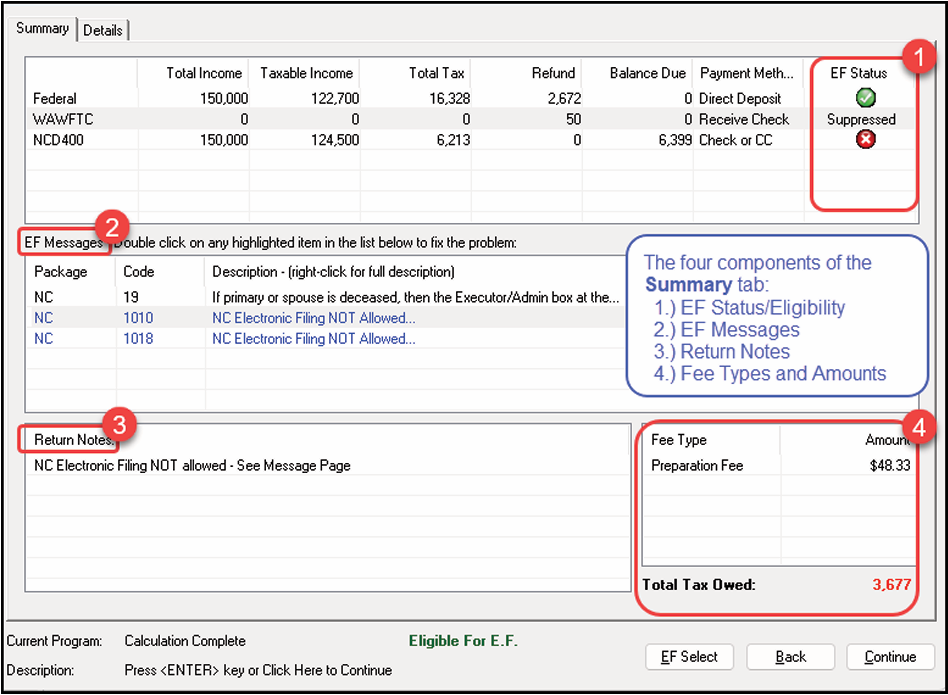
The Summary tab displays the taxpayer’s total income, taxable income, total tax, refund amount, balance due, and payment method, plus the e-file eligibility of the return.
EF Status Column
The EF Status column of the Calculation Results window displays the e-file eligibility of any federal and state forms calculated for the selected return. A green check mark is displayed when the product is eligible for e-file—that is, when there are no EF Messages and no conflicting products have been selected on the EF screen. A red X indicates that a prepared product is not eligible for e-file, having received an EF Message.

Other indicators give the status of other returns and forms and vary by package.
| Item | Description |
|---|---|
| Green Check Mark | Default product is eligible and has no EF Messages; other eligible products have been selected for e-file and have no EF Messages. |
| Red X | Product not eligible for e-file due to EF Messages |
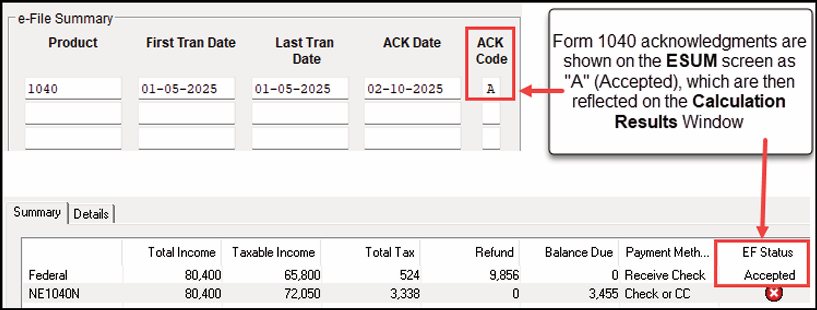
| Accepted | Product has already been transmitted and has received “A” acknowledgment (product appears on ESUM screen with “A” Ack). |
| Suppressed | Product included in the return is ready for e-file (no EF Messages) but a Do NOT send Federal, Do NOT send any states, or Suppress federal/state EF check box has been selected on the EF screen or at Setup > Options > EF tab. |
| Paper-File | Suppress federal/state EF… check box has been selected on the EF screen or at Setup > Options > EF tab. |
| Not Selected | Product included in the return is ready for e-file (no EF Message) but has not been selected on the EF screen. |
| Not Available | e-File is not available for a specific state product. Can be used in a federal product for forms that a |
Notes on the 1040 Calculation Results window when filing Form 9465, Installment Agreement Request:
- The IRS recommends filing Form 9465 online. Go to screen 9465 and click the IRS OPA Application link to go to the IRS Online Payment Agreement Application website.
- If Form 9465 is prepared along with Form 1040, and there are no EF messages and nothing has been selected on the EF screen, then the 1040 receives a green check mark and both forms are marked on the EF Status page in View/Print mode as ready to be e-filed. (ETD_MSG 314 is also generated, stating that to file Form 9465 alone, it must be marked on screens EF and PIN.)
- If Form 9465 is prepared along with Form 1040, and there are no EF messages and 9465 only has been selected on the EF screen and 9465 is selected on the PIN screen, then the Form 9465 line of the Calculation Results window displays a green check mark in the EF Status column and the Federal line displays a “Not selected” indicator. Only the 9465 is marked for e-file on the EF Status page and be available for e-file.
- If Form 9465 is prepared along with Form 1040, and there is an EF Message or ETD_MSG, and the 9465 only check box has been selected on the EF screen and the 9465 check box has been selected on the PIN screen, then the 9465 line of the Calculation Results window displays a green check mark and the Federal line displays a red “X.” Only the 9465 is marked on the EF Status page and available for e-file.
- The ESUM screen has a line for Form 1040 and a separate line for Form 9465. If the 9465 is e-filed with the 1040 and the preparer receives an acknowledgment for the 1040 (which includes the 9465 transmission), the ESUM screen displays each product as having been accepted, triggering the “Accepted” indicator to be displayed on the Federal line of the Calculation Results window, indicating that both federal forms —1040 and 9465—were accepted. The preparer will not receive a separate acknowledgment for the 9465 in this case. If the 9465 is sent separately from Form 1040, the 9465 line displays an “Accepted” indicator on the Calculation Results window and the preparer receives a separate acknowledgment for the 9465.
EF Messages
The EF Messages section of the Calculation Results window lists e-file message codes and descriptions by package. EF Messages pinpoint the reason a return is ineligible for e-file. Identified issues must be corrected for a return to be eligible for e-file.
- Accessing full messages — Most messages do not fit in the Description row. To view a full message, double- or right-click a row, and select View Full Text Of EF Message.
- Accessing message links — If an EF Message is blue, double-clicking it opens the data entry screen that contains the error. If applicable, the field that caused the EF message is activated. EF Messages appear on the MESSAGES page in View/Print mode.
Return Notes
The Return Notes section displays informational notes about the return. These notes provide details about the return, but they do not require that changes be made, and they do not prevent e-file. They appear on the NOTES page in View/Print mode
See Drake Tax – Hide Return Notes for more information.
Fee/Amount Type
The Fee Type and Amount columns list the preparation fees, and when bank products are present, the bank fees and the net amount of any refund check (or the total of all fees charged if the return has a balance due).
To have the fee type and amount displayed here, select Display client fee on Calculation screen from Setup > Options > Calculation & View/Print tab. Fee breakdowns appear on the bank product information page in View/Print mode when bank products are present