

Last Updated:
Article #: 11505
Overview
Grid data entry applies to the following screens:
-
4562
-
2
-
DIV
-
INT
The software ships with grid data entry set to “on.” You can toggle between grid data and the detailed screen by pressing the F3 key.
To turn grid data entry off, go to Setup > Options > Data Entry tab and clear the option box Use grid data entry format on available screens.
Export
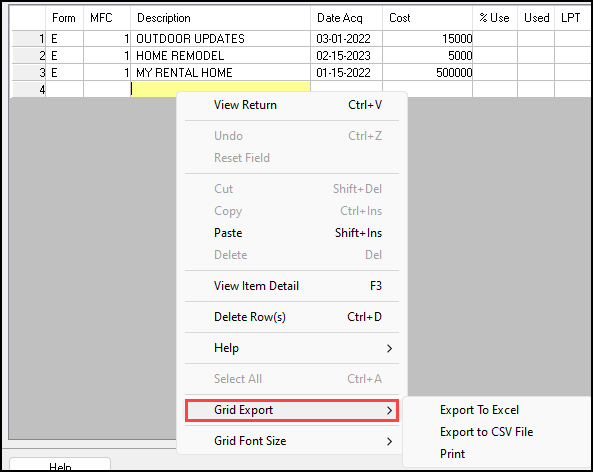
To export a grid entry list into Excel, right-click anywhere on the Grid Entry window and select the export action you need from the Grid Export drop list:
-
Export to Excel – open a spreadsheet displaying the grid list for editing, printing or saving.
-
Export to CSV File – opens a browse window for naming and saving a CSV file containing the grid list.
-
Print – opens the Report Viewer displaying the grid list for viewing, printing or further export.
Existing Forms List
The Existing Forms List is displayed if more than one instance of a screen has been saved in a return.
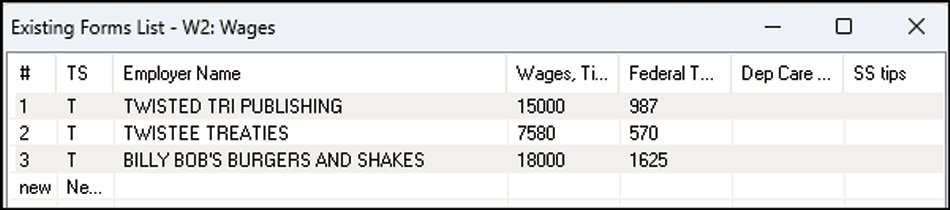
To open a screen from the list, double-click a row (or select it and click Open). To open a new, blank screen, select New Record.
Note Grid data entry replaces an Existing Forms List on the Dependents, INT, DIV, 8949, and 4562 screens if grid data is the established default in Setup Options. Disable the default from the Setup > Options > Data Entry tab.