
Last Updated:
Article #: 19015
SmartReviewTM (Beta) is now available in Drake Tax Online. It can guide you through tax questions, tax forms, and alerts so that you can move through client returns faster and with more confidence.
Tip Watch the video Drake Tax Online SmartReview for a demonstration.
Enable SmartReview (Beta)
To enable SmartReview (Beta), follow these steps:
-
Log into Drake Tax Online and open a tax return.
-
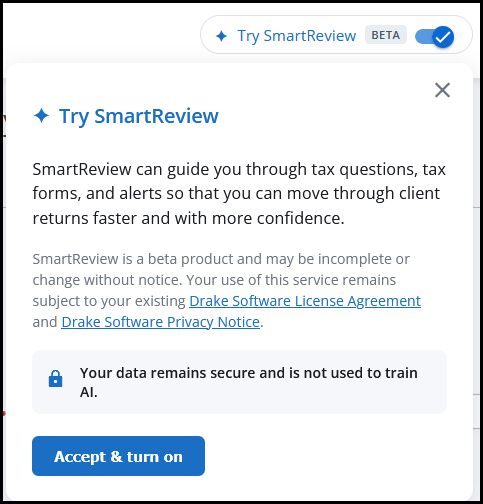
At the top, locate the Try SmartReview (Beta) option.

-
Toggle the option on, review the information provided, and click Accept & turn on to proceed.
-
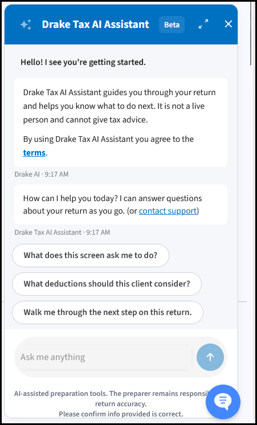
The SmartReview (Beta) window will display on the right-hand side of the screen. Select an available option or enter a free-form question.
-
SmartReview (Beta) gathers context from the screen that you are viewing and can help you determine what to do next. SmartReview (Beta) can even show you how amounts on a tax return were calculated by referencing the return data. Continue interacting with the AI Assistant and selecting options as you work through the return.
-
This feature can be especially useful if you are on the File tab. The error messages are displayed, but you can simply prompt the AI Assistant to help you “clear errors.” The AI Assistant provides more detailed information and quick access to the applicable screens so that you can correct your entries.
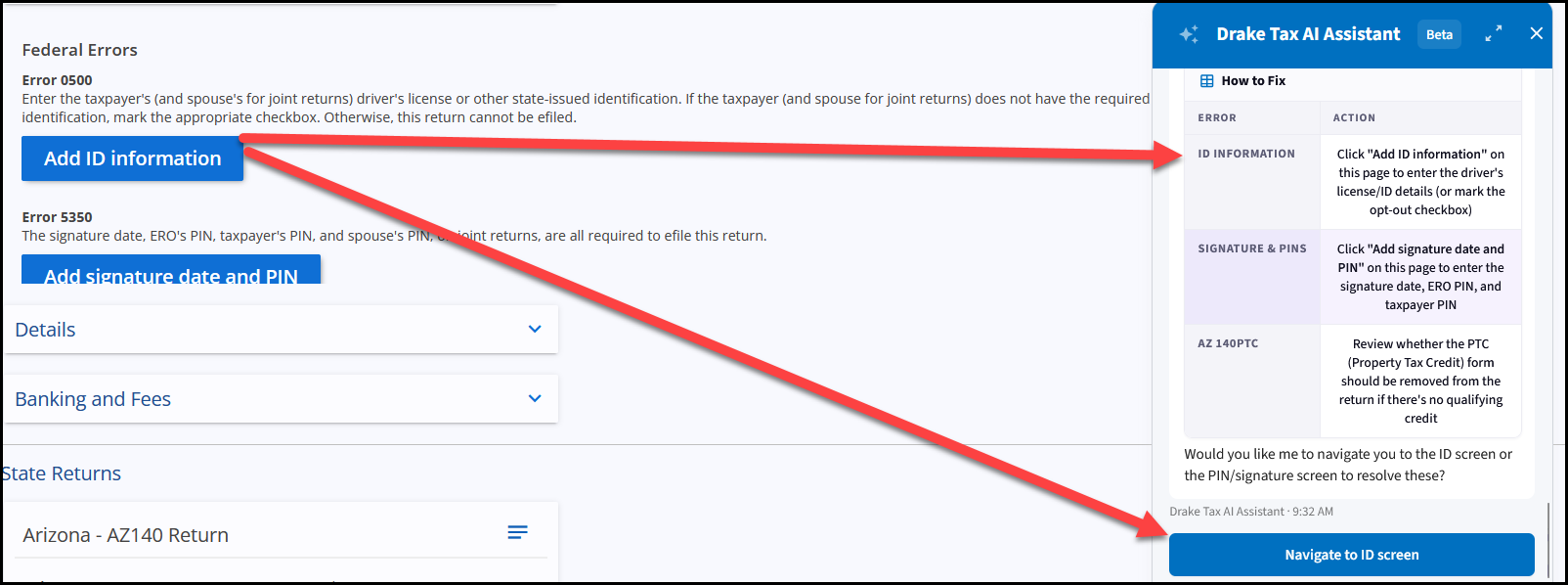
In many cases, you can even select the applicable option in the AI Assistant window and have it enter the details in the screen where necessary:
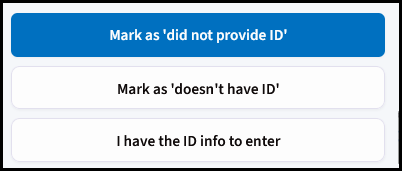
Then, simply review the entries and click Save.
Frequently Asked Questions
What features are available?
SmartReview (Beta) offers the following features:
-
Guided navigation – You are prompted to save unsaved changes before being guided to the correct data entry screen to resolve issues or enter data.
-
Plain-language field help – Tax fields are explained in plain-language or familiar terms, rather than with internal field or code names.
-
Calculation explanation – Shows how amounts on tax return were calculated by referencing the underlying return data.
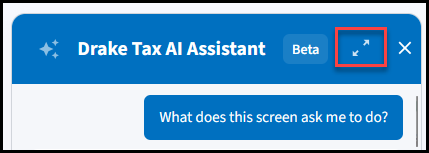
Can I expand the Assistant Window?
Yes, click the two-headed arrow beside the X to make the side window larger:
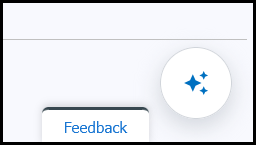
I closed the AI Assistant window; how can I relaunch it?
If you have closed the window by clicking the X, locate the AI Assistant bubble at the bottom right to relaunch it:
How can I contact Support if I need more assistance?
If you need further assistance, contact our Drake Tax Online Support team by phone at (828) 349-5727, or launch the chat available at the bottom right of any Knowledge Base article.
How can I turn off SmartReview (Beta)?
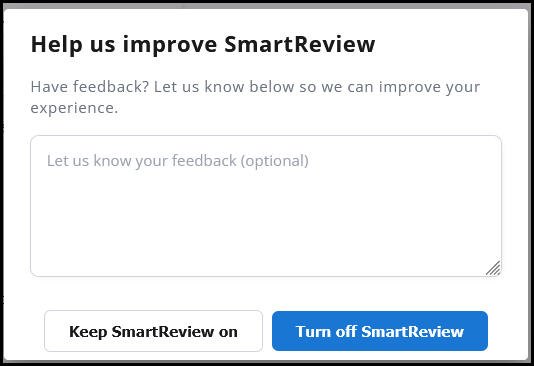
To turn off the SmartReview (Beta), toggle the option at the top to off. You will be prompted to provide feedback (optional) and confirm your selection: