
Last Updated:
Article #: 19008
Overview
To increase synchronization between Drake Tax Desktop and Drake Hub, firm administrators can enable Hub Data Sync (Beta) within Drake Tax Desktop. This feature does the following:
-
Switches your firm’s login to Single Sign-On (SSO). Each preparer and user set up in Drake Tax is configured for SSO, so they use one email/password (plus an authentication code) to access both Drake Tax Desktop and Drake Hub instead of a separate Drake Tax Desktop username/password.
-
For how the new login works day-to-day, see Drake Tax – SSO Login.
-
-
Requires a unique, valid email address for each preparer you want to sync.
-
Enables MFA (multi-factor authentication) for each preparer.
Note You cannot reset or disable MFA in Drake Tax Desktop after Hub Data Sync (Beta) has been enabled.
-
Keeps client and staff data updated automatically between Drake Tax Desktop and Drake Hub.
Watch the video Hub Sync for a demonstration.
Hub Data Sync (Beta) does not sync old Drake Tax Desktop usernames/passwords to SSO. Instead, it changes the firm’s login process from a Drake Tax Desktop username/password to an email address/password with an authentication code.
Note Hub Data Sync (Beta) is not available to multi-site offices at this time.
Prerequisites
Before you can enable Hub Data Sync (Beta), you must:
-
be connected to the internet.
-
sign in to Drake Tax Desktop as a preparer/user with Administrator (Full ADMIN) rights
Important This means a person who is a named Preparer or User that has Administrator (Full ADMIN) rights in Drake Tax, not a person who has logged in with the username ADMIN.
This is a tax software-level permission, not a Drake Hub role.
Enable
To turn on data sync, follow these steps:
-
Log in to Drake Tax Desktop with your current username and password.
-
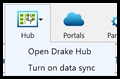
On the homepage, click Hub > Turn on data sync.
-
You will be prompted to enter unique email addresses for any preparers/users that do not already have an email address entered in Setup > Preparers and Users.
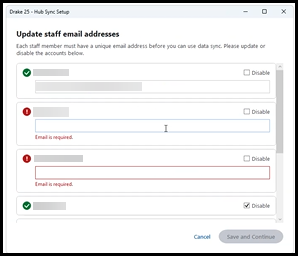
Tip You can mark the Disable option if there are preparers listed that do not need to access the software or Drake Hub at this time. You can re-enable them later, if needed.
It is important to note that if a user/preparer is marked as disabled, they will not be able to log in at all.
-
Click Save and Continue.
-
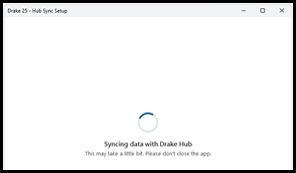
The sync will begin:
-
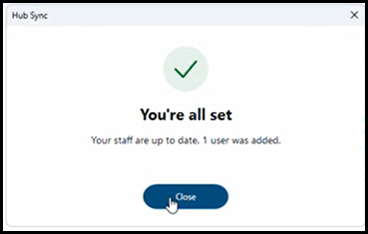
When the sync has completed, you will see the following notification. Click Close.
User/Preparer Changes After Enabling
Administrative Users/Preparers
After Hub Data Sync (Beta) is enabled, users/preparers with administrative rights will see the following options on the Hub icon:
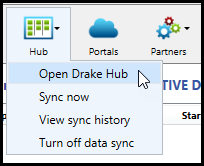
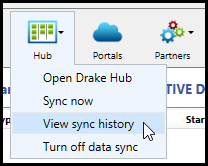
Click View sync history to see details.
Updates are also listed in the Alerts & Notifications section:
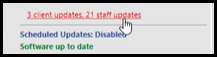
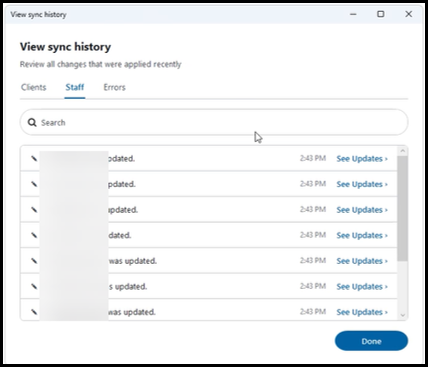
Click the update summary link to view sync history for Clients, Staff, and any Errors. Click each row to see more detailed updates. Click Done when you are finished.
Non-Administrative Users/Preparers
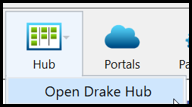
Users/preparers who do not have administrative rights will only see the option to Open Drake Hub:
ADMIN
If someone logs in with the username ADMIN, they will not see the Hub icon on the toolbar as that login should be used only for firm-level maintenance and settings. The ADMIN login does not have access to Drake Hub.
Sign In Process
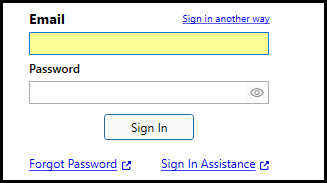
After you have enabled Data Sync, the Drake Tax Desktop login window displays Email and Password fields (rather than a Username and Password). See Drake Tax – SSO Login for details.
Setup Changes
Once you enable Hub Data Sync (Beta), the User Setup window (Setup > Preparers and Users) will show additional columns so that you can see email addresses and statuses more quickly.
New Preparers/Users
After Hub Data Sync (Beta) is enabled, newly added preparers and users must have a unique, valid email address before they can use SSO to sign in to Drake Tax Desktop or Drake Hub. You can set them up as a new user/preparer/staff member in either Drake Tax Desktop or Drake Hub and they will have access to both once they have completed their setup. See Drake Tax – SSO Login for details.
Turn Off Data Sync
To turn off data sync with Drake Hub, a user/preparer with administrative rights will need to click the Hub icon and select Turn off data sync.
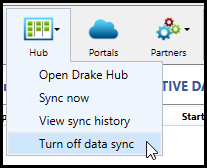
On the prompt, click Yes, turn off sync.
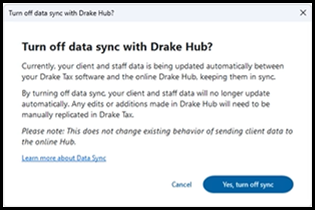
This will prevent client and staff data from being updated automatically from Drake Tax Desktop to Drake Hub. If Hub Data Sync (Beta) is not enabled, client and staff/preparer/user changes made in Drake Hub, Drake Portals, Drake Workflow are not synced back to Drake Tax Desktop and would need to be manually entered, if applicable.
Note This does not affect the existing background synchronization of data from Drake Tax Desktop to Drake Hub (i.e., basic demographic data, e-file data, etc.).
This option is only available to a named user/preparer with administrative rights.
Revert to Traditional Login
If your firm wants to return to traditional username/password logins for Drake Tax Desktop, a firm administrator must turn off Hub Data Sync (Beta) using the steps above. This will revert the Drake Tax Desktop login to the username/password format, however, it will not remove or otherwise change the SSO that has been enabled for Drake Hub (and other ancillary products that use SSO, such as Drake Portals). Once an SSO login has been created for the email address, you would need to log into Drake Hub and edit permissions there.
See Drake Hub – Staff for details on editing staff member details in Drake Hub.
Frequently Asked Questions
What if a preparer or user does not need access right now (while enabling Hub Data Sync (Beta))?
During Hub Data Sync (Beta) setup, preparers or users who do not need access can be disabled.
A firm administrator can mark the Disable option for preparers or users who should not access Drake Tax Desktop or Drake Hub at this time. They can be re-enabled later, if needed.
How do I disable a user/preparer/staff member?
In Drake Tax Desktop, go to Setup > Preparers and Users. Edit the user/preparer and check the box Disable user.
In Drake Hub, click the Staff tab and choose the staff member from the list. To the right of the Active indicator, click on the menu and select Change to Inactive.
Note When Hub Data Sync (Beta) is enabled, the change made in DTD will sync to Hub and vice versa. If Hub Data Sync (Beta) is not enabled, you would have to disable the user/preparer/staff member in both places.
Why can’t I use the same email address for more than one preparer?
Each preparer or user must have a unique and valid email address to use SSO.
If the same email address is assigned to more than one preparer or user, Hub Data Sync (Beta) cannot enable SSO correctly for those accounts. A firm administrator must enter a different email address for each active preparer or user.
What changes in Setup after Hub Data Sync (Beta) is enabled?
After Hub Data Sync (Beta) is enabled, Setup > Preparers and Users displays additional columns. These columns make it easier to review email addresses and sync statuses for preparers and users.
If I change the SSN/EIN for a client in Drake Hub, will that change the SSN/EIN that was used to create the client file?
No, changing the SSN/EIN in Drake Hub will not impact the SSN/EIN in the tax return. Other return data is synced between Drake Hub and Drake Tax Desktop when the Hub Data Sync (Beta) has been enabled.
If I add a preparer in Drake Hub, what permission level will they have in Drake Tax Desktop?
If you start the staff member creation process in Drake Hub, a user/preparer will be created in Drake Tax Desktop, however, the permission level defaults to that of a front office user only. To update permissions, an administrator will need to log into Drake Tax Desktop and configure their Security level there.