

Last Updated:
Article #: 19041
Overview
The Check Register is a read-only view of bank, cash, and credit card account activity in Drake Accounting. It lists transactions in date order with payments, deposits, reconciliation status, offset accounts, and a running balance. Use it to review activity for one account at a time, filter by journal type or reconciliation status, search descriptions and references, and export the visible list.
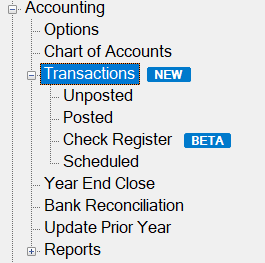
The Check Register is in BETA. A BETA label appears on Accounting > Transactions > Check Register and on the Register tab when you open the register from Journal Entry. Features and layout may change before general release. Click Provide Register Feedback at the top of the screen to send comments to Drake Software.
The client must have a Chart of Accounts set up before you open the register from the main tree. If the Chart of Accounts is not set up, the software displays an incomplete setup message.
For general journal entry tasks (adding or editing transactions), refer to Drake Accounting – Journal Entry.
Open the Check Register
You can open the register from the main tree, from Journal Entry, or from the Chart of Accounts.
From the main tree
- Go to Accounting > Transactions > Check Register.
- The register opens full screen in Register view. The Journal tab does not display on this screen.
From Journal Entry
- Go to Accounting > Transactions and open Unposted, Posted, or Live Transactions (depending on how the client posts).
- On the Journal Entry screen, click the Register tab (labeled Register with BETA).
- Click Journal to return to the editable journal grid when both tabs are available.
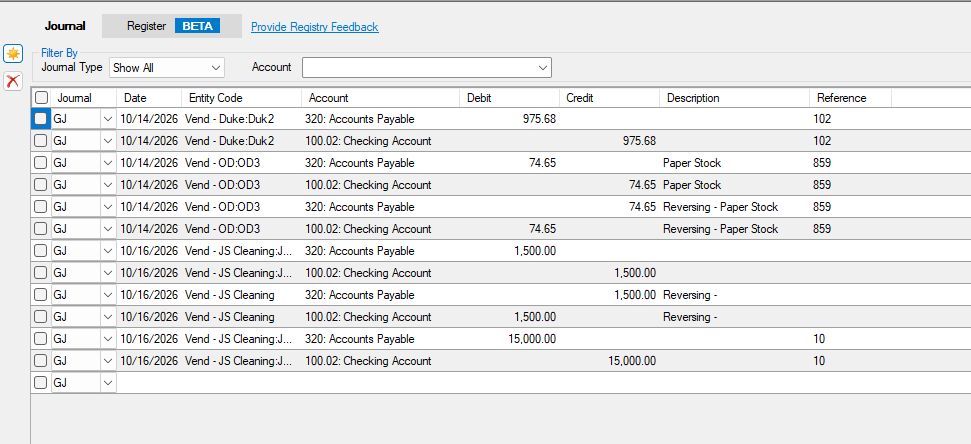
When you open the register from the main tree, you cannot switch to the Journal tab on the same screen. Open Unposted, Posted, or Live Transactions to edit entries.
If you have unsaved journal entries when you click the Register tab, you are prompted to save them first. The register shows saved data only.
From the Chart of Accounts
- Go to Accounting > Chart of Accounts.
- Select a bank, cash, or credit card account in the grid.
- Click View Register.
The register opens in a separate window with the selected account. The Journal and Register tabs display so you can switch views.
View Register is only available for bank and cash accounts (postable, level 0) and credit card accounts. For other accounts, the software explains that the check register is only available for bank, cash, and credit card accounts.
Register layout and columns
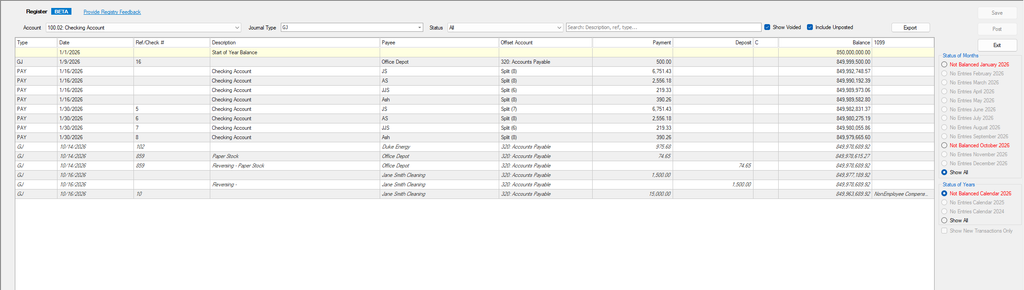
The top of the screen contains filters. The grid lists transactions for the selected account and fiscal year. A footer under the grid summarizes the filtered result.
Columns
The register displays the following columns (left to right):
- Type – Journal type (for example CD, CR, GJ).
- Date – Transaction date.
- Ref/Check # – Reference or check number.
- Description – Transaction description.
- Payee – Payee name when present.
- Offset Account – Offsetting account, or Split (n) when multiple lines apply. Hover a split cell to see offset detail in a tooltip.
- Note: During the BETA period, this column usually populates for transactions the software generates with linked offsetting entries (for example accounts payable checks, accounts receivable receipts, and payroll). Hand-keyed journal entries on the register account often leave Offset Account blank even when other lines exist in the journal entry.
- Division – Division code when the client uses divisions and any loaded transaction has division information. The column is hidden until it is needed.
- 1099 – 1099 code when any loaded transaction has 1099 information. The column is hidden until it is needed.
- Payment and Deposit – Amounts for the selected account.
- C – Cleared status for bank reconciliation (for example C cleared, O outstanding, T in transit, V void).
- Balance – Running balance in date order.
The first row may show balance-forward information for the selected period (highlighted). Voided transactions display with grey strike-through when Show Voided is on. Unposted transactions display in italic when they are included in the register.
Footer and totals
The footer under the grid shows the number of transactions matching the current filters and the running balance at the end of the filtered list.
The Totals area on the right side of the screen shows Deposits, Payments, and Balance (net change) for the transactions currently displayed in the register. These amounts update when you change account, year, month, or filters.
Filter and search transactions
- Select an Account from the drop list. Only bank, cash, and credit card register accounts appear.
- Use the Journal Type control to include or exclude journal types. When all types are checked, the control shows All.
- Select a Status from the drop list:
- All – Every transaction for the account and period (subject to other filters).
- Unreconciled – Transactions that do not have a bank reconciliation status assigned (no cleared, outstanding, or in transit type).
- Cleared– Transactions marked cleared in bank reconciliation.
- Outstanding – Transactions marked outstanding in bank reconciliation.
- In Transit – Transactions marked in transit in bank reconciliation.
- Enter text in Search: Description, ref, type… to narrow the list. Matching is not case-sensitive.
- Check Show Voided to include voided transactions in the grid.
- Include Unposted Transactions is selected by default. Clear it to show posted activity only.
Include Unposted Transactions does not display for clients that use Live Transactions (live posting). Those clients do not maintain a separate unposted journal in the same way.
Year and month
Use the Years and month controls on the right side of the screen to choose the fiscal year and month. These controls are available however you open the register, and they stay in sync with the Journal tab when that tab is visible.
Show All years is not available in Register view. Select Current Year, Prior Year, or Second Prior Year as needed.
Sort, balance column, and grid behavior
- Click a column header to sort the grid.
- When the grid is sorted by a column other than Date, the Balance column is blank. Running balance is meaningful only in date order.
- Sort by Date again (or clear the sort) to restore balance amounts.
The register grid is read-only. Right-click menus on the grid are disabled. Use the filter bar and Journal Entry controls to change what you see.
To view or edit a transaction, click the Journal tab, or open Unposted, Posted, or Live Transactions.
Export the register
- Apply the account, year, and filters you want in the file.
- Click Export.
- Choose CSV or Excel.
- Select a file location and save.
- When prompted, choose whether to open the file.
Send feedback
Click Provide Register Feedback to open an email to ProProductFeedback@drakesoftware.com with a subject line that includes your Drake Accounting account number.
Report issues or suggestions through that link so the product team can improve the register during the BETA period.