

Last Updated:
Article #: 19006
Statuses
Most workflow statuses update automatically as a return progresses through the preparation stages in a connected application. You can also manually select or adjust the status as needed as it moves through your office’s workflow.
Workflow statuses include:
-
New Returns
-
Gathering Info
-
In Preparation
-
In Review
-
Completed
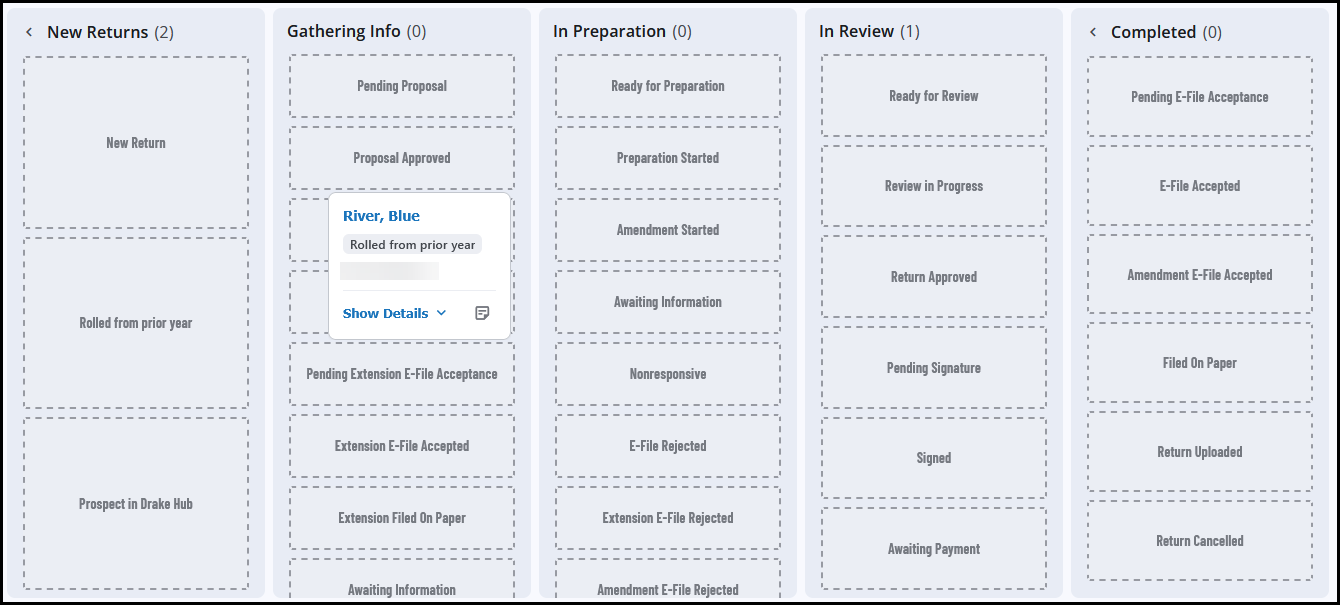
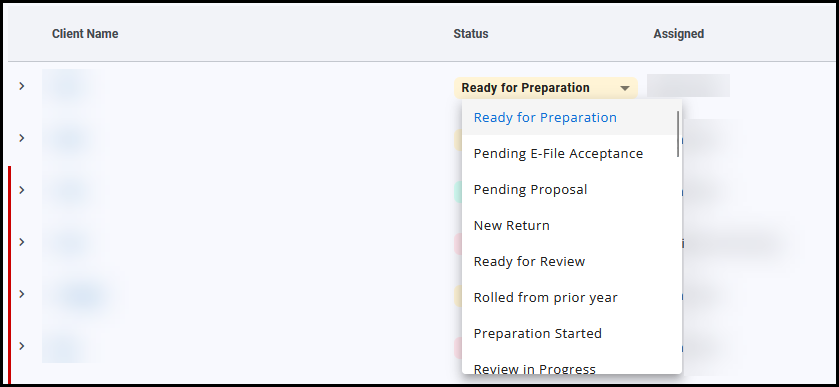
On the Board view, you can drag and drop the client tile to manually update the status. If you are in the List view, click the current status drop list and choose the new status. Changes are saved automatically.
Board
List
New Returns
-
Rolled from prior year – updated from the prior year of Drake Tax, but data entry has not begun.
-
Created new in Drake Tax – return created in the current year of Drake Tax, but data entry has not begun.
-
Prospect in Drake Hub – client information was added in Drake Hub (prospective), but a return has not been created in Drake Tax Desktop or Drake Tax Online.
Gathering Info
-
Pending Proposal – file uploaded to Drake Portals that is marked as Proposal. See Drake Portals – Request File Approval (Preparer View) for details.
-
Proposal Approved – taxpayer has completed their review of the proposed file in Drake Portals and marked Approve. See Drake Portals – File Approval Requests (Taxpayer View) for details.
-
Pending Engagement – engagement letter uploaded through Drake Portals (KBA not required).
-
Signed Engagement – taxpayer has signed the engagement letter using Drake Portals.
-
Pending Extension e-File Acceptance – an extension has been e-filed for this client’s return, but it has not yet been accepted.
-
Extension e-File Accepted – an extension has been e-filed for this client’s return, and it has been accepted.
-
Extension Filed on Paper – this status must be manually selected, if applicable.
-
Pending Data – the preparer requested taxpayer information using Drake Portals and at least one tasks has not yet been completed by the taxpayer.
-
Data Submitted – the preparer requested taxpayer information using Drake Portals and all tasks have been completed by the taxpayer.
In Preparation
-
Preparation Started – this status must be manually selected, if applicable.
-
Amendment Started – this status must be manually selected, if applicable.
-
e-File Rejected – a return for this taxpayer was e-filed, but it has received an e-file rejection.
-
Extension e-File Rejected – an extension for this taxpayer was e-filed, but it has received an e-file rejection.
In Review
-
Preparation Complete – this status must be manually selected, if applicable.
-
Pending Approval – file uploaded to Drake Portals that is marked as Draft Return. See Drake Portals – Request File Approval (Preparer View) for details.
-
Return Approved – taxpayer has completed their review of the Draft Return file in Drake Portals and marked Approve. See Drake Portals – File Approval Requests (Taxpayer View) for details.
-
Pending Signature – preparer has requested an electronic signature using Drake E-Sign Online (KBA required). See Drake Portals – Drake E-Sign Online for details.
-
Signed – taxpayer successfully e-signed their return. See Drake Portals – Drake E-Sign Online (Taxpayer View) for details.
Completed
-
Pending e-File Acceptance – a regular return (not an extension) has been e-filed and is pending e-file acceptance.
-
e-File Accepted – a regular return (not an extension) has been e-filed and has been accepted.
-
Filed on Paper – this status must be manually selected, if applicable.
-
Return Cancelled – this status must be manually selected, if applicable.
Status Colors
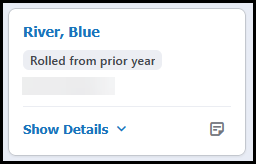
Gray
Indicates that the return is in the normal process, and there are no urgent action items.

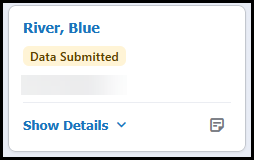
Yellow
Manual review is necessary to move the return through the process, but there are no urgent action items. Used for the Data Submitted status.

Red
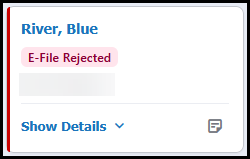
Review of the return is urgently required. Used for e-File Rejected and Extension e-File Rejected.

Green
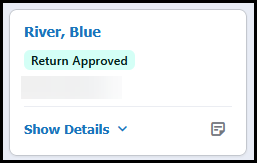
The return is ready to be completed. Used for Return Approved and Preparation Complete.

Outline Colors
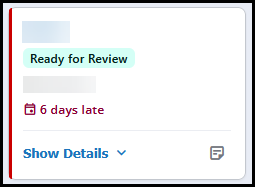
If the return due date is within 3 calendar days or overdue, the box outline will be red even if the status is not.

Due Date
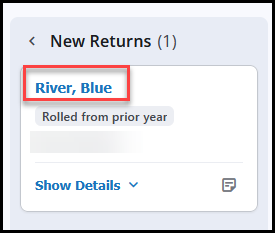
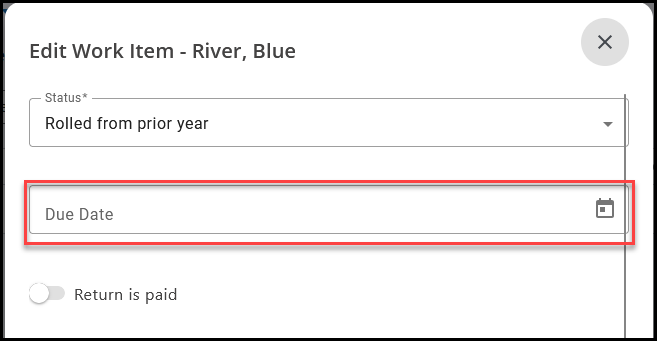
You must select the due date as it applies to each return. Due dates are not set by any automatic process and are primarily used for filtering. To select a due date, edit the work item by clicking on the taxpayer’s name in the board/list.

Enter or select a due date and click Save.
Return Paid
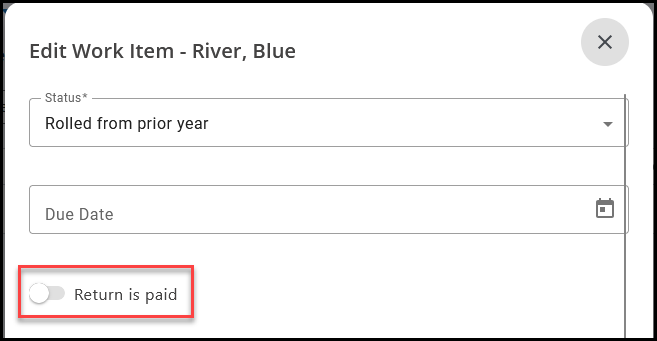
You can manually indicate that the client has paid for their return by editing the work item by clicking on the taxpayer’s name in the board/list.
Toggle Return is paid and click Save.
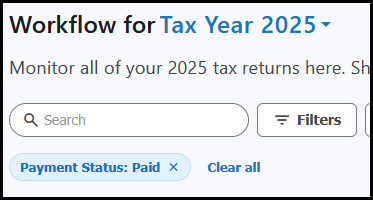
On the Board view, you can filter by Paid.
If using the List view, you will see Paid in the Pay column.
