Drake Accounting - Entering Sick and Vacation Leave
Article #: 15136
Last Updated: June 25, 2026

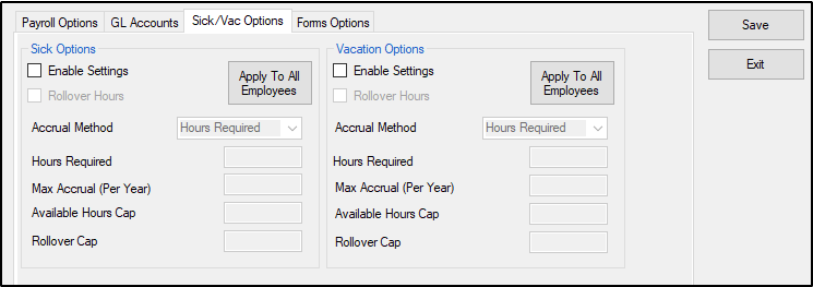
To set up Sick and Vacation Pay, you must first enable the option by going to Employees > Options. Check the box Enable Settings under Sick Options and Vacation Options. You can make selections globally and click Apply To All Employees here or continue below to set amounts on an employee level individually.
Enter Employee information:
-
Go to Employees > Employee Setup.
-
Select the Employee (double-click the employee's name).
-
Select the Payroll Options tab.
-
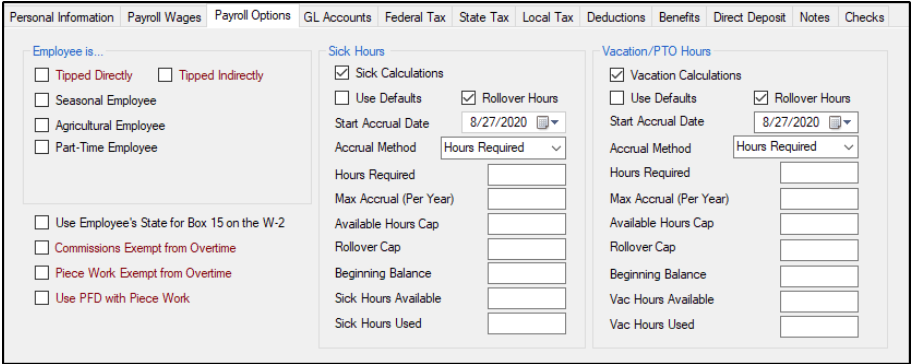
On the Payroll Options tab for sick leave or for vacation annual leave, make the necessary selections.
-
If you check the box Use Defaults, the program will use the defaults that have been set up under Employees > Options > Sick/Vac Options tab.
-
If you do not check the box Use Defaults, you will need to enter sick and vacation pay calculations for each employee.
-
If you want the hours to rollover, mark the Rollover Hours box. This updates the rollover amounts to next year's beginning balance.
-
The Beginning Balance, Sick Hours Available, and Sick Hours Used are used to reflect beginning amounts for the employee, if any.
-
If you are completing your entries mid-year for a new client or conversion, you may need to enter the current numbers instead.
-
-
When the Payroll Options tab entries are completed, click Save.
-
Repeat this step for each employee.
-
When all employee data has been entered and saved, click Exit to leave the screen.
Accrual Methods:
-
If using Accrual Method: Hours Required, the number of sick/vacation/PTO hours earned is based on the hours worked that paycheck. For example: if the employee is eligible to earn 1 hour of sick/vacation/PTO for every 40 hours worked, enter Hours Required as 40. If the employee works less than 40 hours, they will not receive a full hour of sick/vacation/PTO.
-
If using Accrual Method: Per Hours Worked, the number of sick/vacation/PTO hours credited is based on the ratio of hours eligible to hours actually worked. This should be entered as a decimal. For example, if the employee earns 1 hour of sick/vacation/PTO for every 30 hours worked, enter the Accrual Amount as 0.0333333 (figured by dividing total number of sick/vacation/PTO hours by the number of hours that must be worked - 1/30=0.0333333)
-
If using Accrual Method: Per Check, the number of sick/vacation/PTO hours earned is based on whether or not they are issued a paycheck for that week. For example: if the employee earns 1 hour of sick/vacation/PTO on every check, enter the Accrual Amount as 1.
-
If using Accrual Method: Per Year, the number of sick/vacation/PTO hours earned for each check is based on the number of hours eligible for the year divided by the number of checks that would be issued. For example: if the employee earns 40 hours for the entire year, and they are paid weekly, enter the Accrual Amount as 0.7692307 (figured by dividing total number of sick/vacation/PTO hours by the number of pay periods - 40/52=0.7692307).
-
If using Accrual Method: Yearly Lump Sum, the number of sick/vacation/PTO hours earned is a certain amount per year. For example: if the employee earns 40 hours each year, enter the Beginning lump Sum as 40.