
Last Updated:
Article #: 19012
Overview
Starting with Drake Tax 2025, if your firm has enabled the Hub Data Sync (Beta) feature, your Drake Tax login will use Single Sign On (SSO) credentials. Instead of signing in with a Drake Tax Desktop username and password, preparers and users will sign in with their SSO email address and password. The same credentials are also used for Drake Tax Desktop and Drake Hub.
This change helps connect Drake Tax Desktop and Drake Hub more closely by using an SSO method for each preparer or user. It also enables multi-factor authentication (MFA) for each preparer.
Enable
An administrator can enable the Hub Data Sync (Beta) feature by following the steps in KB Drake Tax – Hub Data Sync (Beta).
Note The following information applies only to those offices that have enabled Hub Data Sync (Beta). All other offices should use Drake Tax – Security Information: Password Setup and Recovery to troubleshoot login issues.
Sign In (Internet Online)
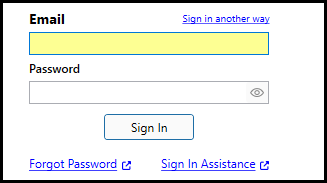
After Hub Data Sync (Beta) is enabled, the Drake Tax Desktop login window displays Email and Password fields instead of Username and Password fields. To login, follow these steps:
-
On the Drake Tax Desktop login window, enter your SSO email address and password.
-
When prompted, enter the validation code.
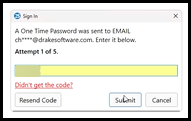
The code is sent to the email address on file.
-
You can also configure code delivery via SMS or authenticate your login using an authenticator app. See Other MFA Code Options for details.
-
Note After Hub Data Sync (Beta) is enabled, MFA cannot be reset or disabled from within Drake Tax Desktop.
Email Code Not Received
After you enter your SSO email address and password, Drake sends a validation code to the email address on file.
Check the inbox for the email address assigned to your Drake Tax preparer or user account. If you do not see the code, check the following:
-
Confirm that you are checking the correct email address.
-
Check your spam, junk, clutter, or quarantine folder.
-
Allow a few minutes for the email to arrive.
-
Make sure your email provider is not blocking messages from Drake.
-
Ask your firm administrator to confirm that the email address entered for your preparer or user account is correct.
If the email address is incorrect, a firm administrator will need to update it in Setup > Preparers and Users. If the email is correct, continue to “Resend Onboarding Email” below.
Resend Onboarding Email
If the email address is correct, but the user/preparer/staff member did not receive it (or accidentally deleted it), a firm administrator can resend the onboarding email by following these steps:
-
Log into Drake Hub.
-
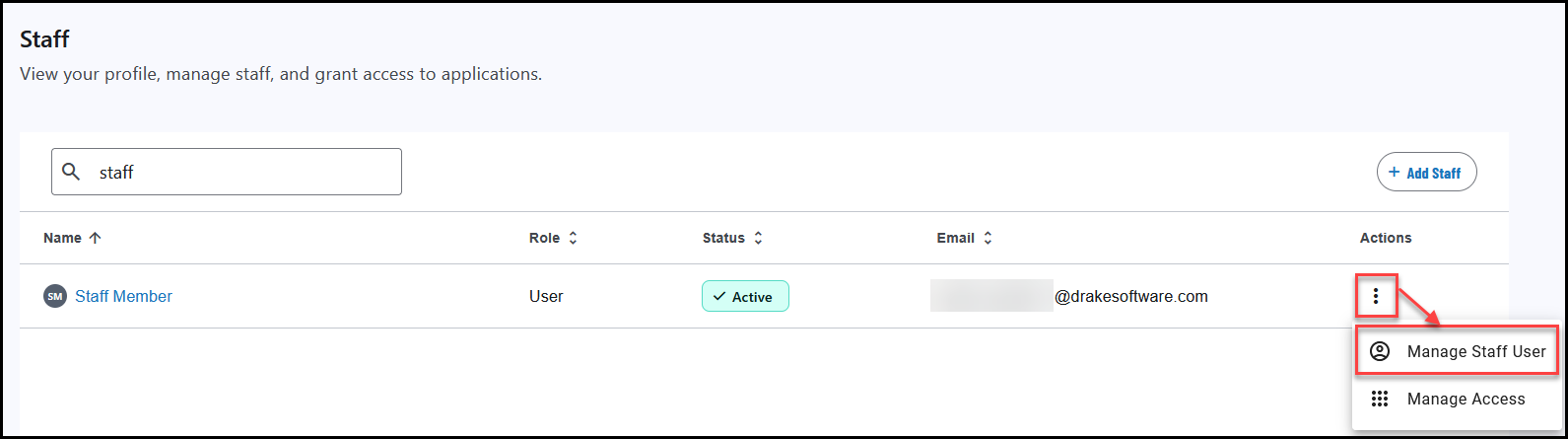
Click on the Staff tab.
-
Locate the individual in the list and choose Manage Staff User from the menu under the Actions column.
-
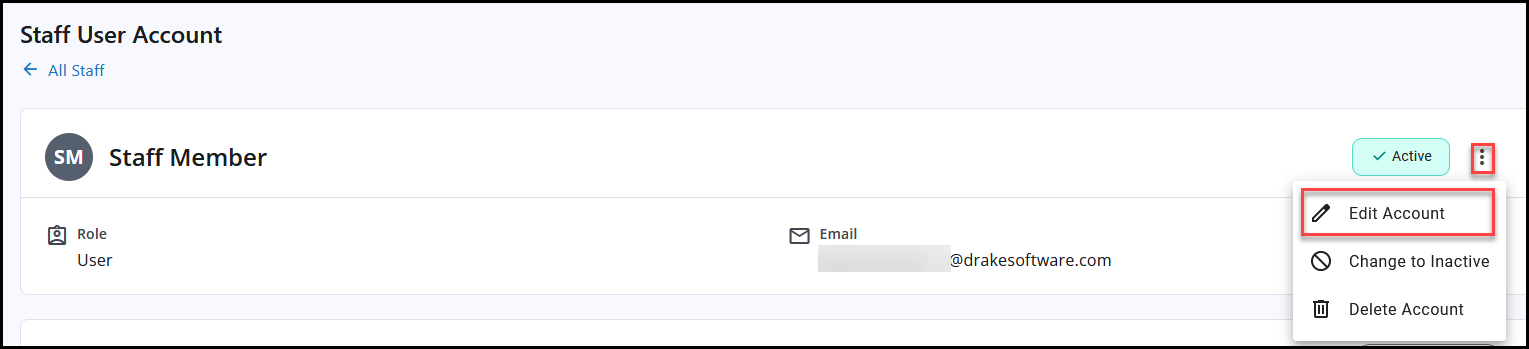
Click on the menu at the top right and select Edit Account.
-
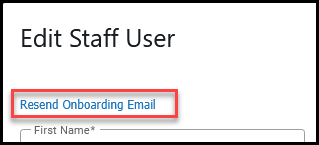
Click Resend Onboarding Email, above the First Name field.
Email Code Expired
The one-time code expires after 15 minutes. If you do not enter the code within that timeframe, the code will no longer work.
To continue signing in, select Resend Code or Request Code to receive a new one-time code. Use the most recent code you receive.
If you do not see an option to resend or request a new code, return to the Drake Tax login window and restart the login process.
Other MFA Code Options
You can also configure your account to receive a code via text message or an authenticator app. To do so, follow these steps:
-
Log into Drake Hub with your SSO credentials.
-
At the top right, click on the profile icon and choose Manage my Account.
-
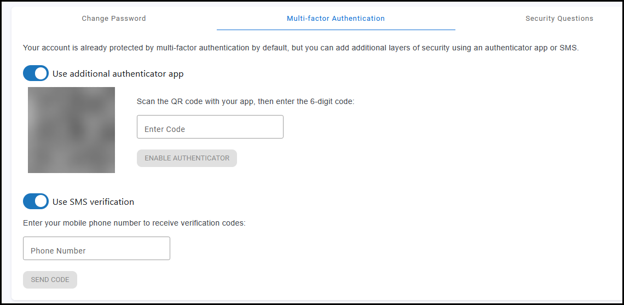
Click on the Multi-Factor Authentication tab.
-
Toggle the option(s) that you wish to enable:
-
Use additional authenticator app
-
Use SMS verification
-
-
Follow the on-screen prompts to configure your app or receive an authentication code via SMS.
Once you have enabled the use of an authenticator app or SMS verification, when you attempt to log in to Drake Tax you will be prompted to select how you want to authenticate your login before you can click Continue:
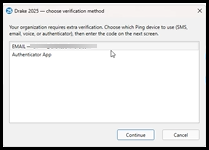
You can enable both the app and SMS options at the same time. The email verification method is enabled by default and cannot be toggled off.
Forgotten Password
If you have forgotten your SSO password, follow these steps:
-
On the Drake Tax Desktop login window, click the Forgot Password.
-
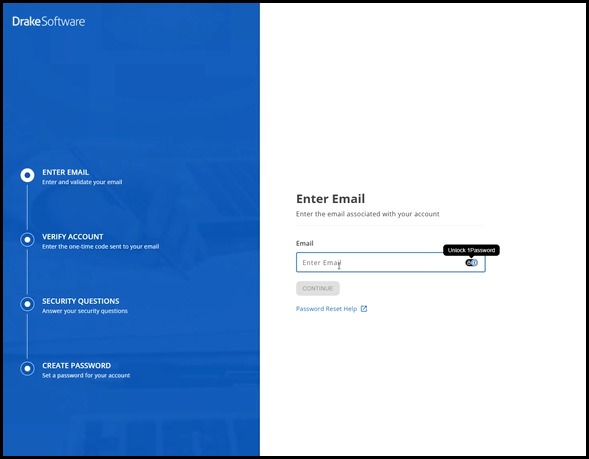
Enter your email address and click Continue.
-
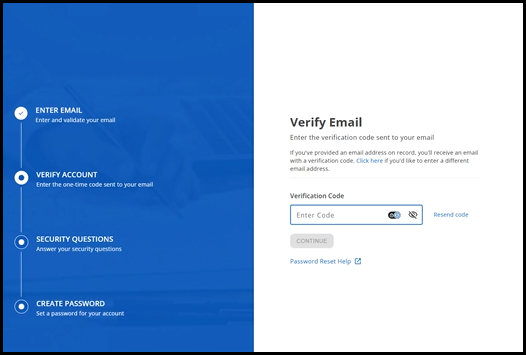
Retrieve and enter the verification code from your email, then click Continue.
-
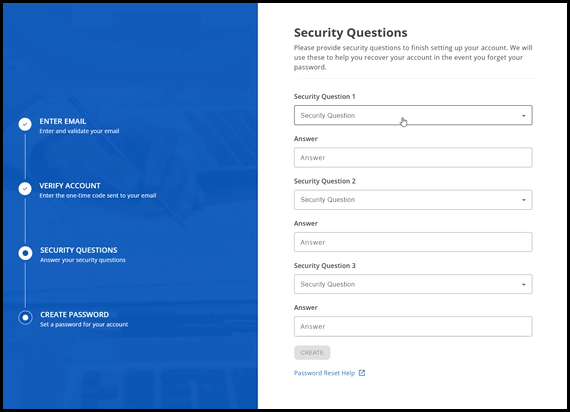
Enter the answer to your security question, then click Continue.
-
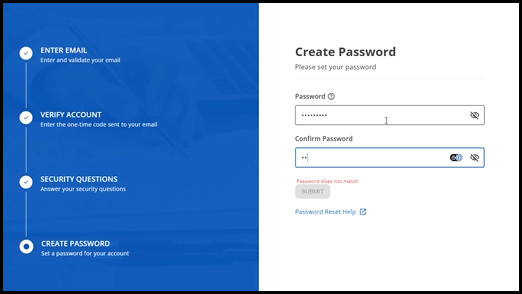
Enter and confirm a new password, then click Submit.
Sign In Another Way
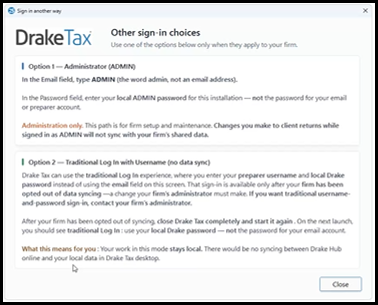
If you click Sign in another way, you will see the following informational window:
-
ADMIN – To make changes to your firm setup you can use ADMIN with your local admin password. To take full advantage of the Hub Data Sync (Beta), you should log in with your named preparer when you intend to make client/return changes.
-
Traditional Log in – If your firm wants to use the traditional log in credentials, a firm administrator must opt out of the sync (steps in Drake Tax – Hub Data Sync (Beta)).
Session Timeout/Automatic Logout
Drake Tax Desktop automatically logs you out after a period of inactivity. When that happens, you’ll be presented with the appropriate login screen (SSO online, SSO offline, or local). You will need to sign back in using the applicable credentials.
Drake Tax Desktop and Drake Hub
With this feature enabled, Drake Tax Desktop and Drake Hub are seamlessly connected.
-
If you click the Drake Tax Desktop to launch the program from Drake Hub, you will be signed in automatically and won’t be prompted to log in again.
-
If you click the Hub icon in Drake Tax Desktop, your browser window will launch, and you won’t have to log in again (until the session times out due to inactivity).
New User/Preparer/Staff Member
To set up a new user or preparer in Drake Tax Desktop, follow these steps:
-
On the Home window of the software, go to Setup > Preparers and Users to open the User Setup dialog box.
-
Click the Add icon.
-
Complete the User Setup window. Make sure that you select the applicable Security permission prior to clicking Save.
-
Once you have saved, the new user/preparer will receive an onboarding email and they will be synced to Drake Hub.
You can also set the user/preparer up in Drake Hub and have that information synced to Drake Tax Desktop within about 60 seconds. See Drake Hub – Staff for detailed steps.
Important This will create the user/preparer login for Drake Tax Desktop; however, they will only have Front Office level permission in Drake Tax Desktop unless an administrative user/preparer logs in and updates their Security to a different level.
See Drake Tax – User or Preparer Security Rights for more information about security levels.
Frequently Asked Questions
Why is Drake asking for my email? Why did my login screen change?
Drake is asking for your email because your firm has enabled Hub Data Sync (Beta). This also changes the login screen appearance and entry fields.
When Hub Data Sync (Beta) is enabled, each preparer and user must have a unique, valid email address. That email address becomes the SSO login used to access Drake Tax Desktop and Drake Hub.
The firm’s login process has changed from a username/password format to an email/password format that also requires an authentication code.
Can I still use my old Drake Tax Desktop username?
You will not be able to use your old username and password to access the software when Hub Data Sync (Beta) has been enabled. Named preparers and users should sign in with their SSO email address and password after Hub Data Sync (Beta) has been enabled.
Can MFA be reset or disabled in Drake Tax Desktop?
No. After Hub Data Sync (Beta) has been enabled, MFA cannot be reset or disabled from Drake Tax Desktop.
If a user is having trouble with MFA or validation codes, confirm that the email address on file is correct and that the user can access that inbox.
Can the firm turn off Hub Data Sync (Beta)?
Yes. A firm administrator can turn off Hub Data Sync (Beta) from the Hub menu. See Drake Tax – Hub Data Sync (Beta) for details.