

Last Updated:
Article #: 18202
You can customize Drake Tax by going to Setup > Options and selecting from the options on the available tabs. Note that some options vary depending on the year of Drake Tax being used and your preparer security settings or rights.
Watch the video Setup Options for a demonstration.
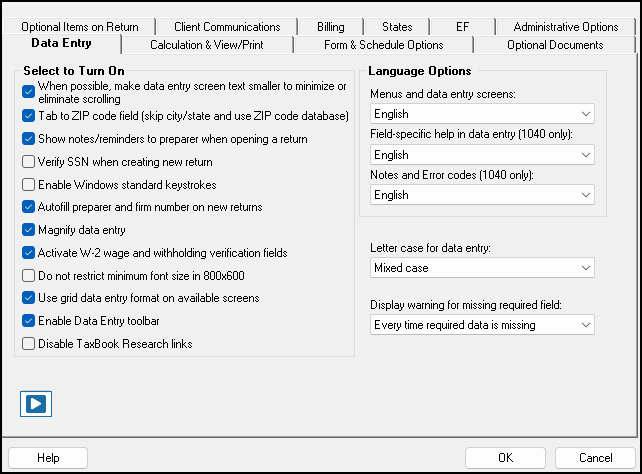
Data Entry Tab
-
When possible, make data entry screen text smaller to minimize or eliminate scrolling – see Drake Tax – Window Sizing Incorrect and Drake Tax – Fonts Too Small
-
Tab to ZIP code field (skip city/state and use ZIP code database)
-
Show notes/reminders to preparer when opening a return – see Drake Tax – Adding a Preparer Note
-
Verify SSN when creating new return
-
Enable Windows standard keystrokes – see Drake Tax – Hot Key Shortcut List
-
Autofill preparer and firm number on new returns
-
Magnify data entry – When you click inside a data entry box, the field and text increase in size to allow you to better see the field and your entry.
-
Activate W-2 wage and withholding verification fields – see Drake Tax – 1040: Wage or Distribution and Withholding Verification Fields
-
Do not restrict minimum font size in 800×600
-
Use grid data entry format on available screens – see Grid Data Entry and Export – DIV, INT, 4562, Dependent Screens and
-
Enable Data Entry toolbar – see Drake Tax – Data Entry Toolbar
-
Disable TaxBook Research links – see TheTaxBook
-
Language Options (English or Español) – see Drake Tax – Language Setup
-
Menus and data entry screens
-
Field-specific help in data entry (1040 only)
-
Notes and Error Codes (1040 only)
-
-
Letter case for data entry (upper case or mixed case) – see Drake Tax – Changing Letter Case in Data Entry
-
Display warning for missing required field
Calculation & View/Print Tab
-
Auto-calculate tax return when exiting data entry – see Drake Tax – Preventing Autocalculation of the Tax Return
-
Display client fee on Calculation screen – see Drake Tax – Bank Products: Fee Information
-
Print only one overflow statement per page – see Drake Tax – Overflow and Other Statements: One Page or Separate Pages
-
Go directly to form when accessing View or data entry mode
-
Audible notification of calculation error messages – see Drake Tax – Shuts Down, Crashes, or Closes Unexpectedly
-
Mask SSN, EFIN, PTIN on Client and Preparer sets – see Drake Tax – Mask SSN, EFIN, PTIN on Client and Preparer Sets
-
Do not mask last 4 digits of SSN
-
Do not mask depositor account number on Form 1040
-
See Drake Tax – View/Print Mode Setup Options for additional masking options available in view mode.
-
-
Turn off auto-balance of the balance sheet
-
Elect to claim FTC without filing Form 1116 when possible – see Drake Tax – 1116 – Schedule B Foreign Tax Carryover Reconciliation Schedule
-
Layout for depreciation schedule (setting in Drake Tax 2023 and prior only). The schedule is printed in Landscape starting in Drake Tax 2024.
-
Pause option for calculation – see Drake Tax – Shuts Down, Crashes, or Closes Unexpectedly
-
Number of days to store print files – see Drake Tax – EF Return Selector: Removing Entries
-
Print sort options for Interest/Dividends
Form & Schedule Options Tab
Print Schedule A only when required – Produce Schedule A only when taxpayer qualifies for itemized deductions.
Print Schedule B only when required – Produce Schedule B only when taxpayer has enough interest income to require filing Schedule B.
Print Form 4562 only when required – Produce Form 4562, Depreciation and Amortization, only when the tax return requires it.
Print Form 6251 only when required – Produce Form 6251, Alternative Minimum Tax, only when the tax return requires it.
Next-year depreciation schedule – Produce a depreciation schedule for tax year 2026 in addition to the one for 2025. See Drake Tax – Next Year Depreciation Schedule
W-2/1099 forms – Produce and display all Forms W-2 and 1099-R with the return in View/Print mode.
-
Print two W-2/1099-Rs per page – If return has more than one Form W-2 or 1099-R, print two per page. See Drake Tax – Printing Form W-2 or Form 1099-R from View/Print Mode.
-
-
Carryover Worksheet – see 1040 – Net Operating Loss FAQs and Drake Tax – 1040 – State Taxes on Wks CARRY
Print ES vouchers only when screen ES indicates – Print estimated tax vouchers only when screen ES exists. See Drake Tax – Printing Estimate Vouchers and Entering Estimates Paid and Drake Tax – 1040: Amounts Updating to ES Screen
Always show reason for no EIC – Generate a Return Note explaining why the taxpayer does not qualify for the Earned Income Credit (EIC). See Drake Tax – EIC: Frequently Asked Questions
Always show tax computation worksheet – Generate the Computation of Regular Tax worksheet (“Tax Computation” in View/Print mode), showing how the program calculates the tax on line 16 of Form 1040. See Drake Tax – 1040 – No Tax or Tax Different than Tax Table
1040-SR suppress – Choose to have Form 1040 generated and Form 1040-SR suppressed globally when the taxpayer is eligible to use Form 1040-SR. See Drake Tax – Form 1040-SR
Form 8879 bank account options – Select an option for printing bank account information on Form 8879. See Form 8879 – Frequently Asked Questions
Select to Turn On – Produce lists of the following items (W-2, W-2G, 1099-M, 1099-NEC, 1099-R, federal withholding lists, dividends, interest, and K-1s) when the selected number is exceeded.
-
W-2 list if greater than __
-
W-2G list if greater than __
-
1099-M list if greater than __
-
1099-NEC list if greater than __
-
1099-R list if greater than __
-
Federal Withholding Summary – see Drake Tax – Federal Withholding Worksheet
-
List of Dividends and Interest if more than __
-
K-1 list (bus. returns only) if greater than __
-
Print shareholder’s/partner’s adjusted basis worksheet (1120-S/1065 packages only) – Automatically print a partner’s or shareholder’s Basis Worksheet (“Wks Adj Basis” (1065)/“Wks SBAS” (1120-S) in View/Print mode). See Drake Tax – 1040: Basis Worksheets
Optional Documents Tab
Folder coversheet – Description Generate a folder cover sheet on which the taxpayers’ names, as well as the name, address, and phone number of the preparer’s firm, are printed
Prior year(s) comparison form – Produce a comparison sheet containing data from the current and prior-year returns. See Drake Tax – Comparison Sheet – Frequently Asked Questions
Return summary – Produce a return summary with every return prepared
Bill summary – Produce a summary of the taxpayer’s bill with each return.
Labels – Print a sheet of “mail to” addresses on compatible labels.
Envelope Sheet (address drop lists) – Choose the size of the envelope on which to print the addresses of the taxpayer, IRS Service Center, state tax department, and city tax office, as well as the address for filing Schedules K-1 and the address of the preparer’s firm.
IRS service center address
-
State address
-
City address
-
K-1 address
-
Firm address
Do not print taxpayer envelope sheet with organizer – Prevent a cover sheet addressed to the taxpayer from being included with organizers; any selection from the Taxpayer address drop list is still included when the return is printed.
Do not print firm envelope sheet with organizer – Prevent a cover sheet addressed to the firm from being included with organizers; any selection from the Firm address drop list is still included when the return is printed.
Estimated payment coversheet (Nelco ENV500) – Print cover sheets for applicable estimated tax payment addresses using Nelco ENV500 envelope dimensions (1040 and 1041 returns with quarterly taxes only).
Order Nelco compatible presentation products – Go to the NELCO website to order such Drake Tax-compatible products as envelopes, IRS forms, and checks.
Optional Items on Return Tab
-
Date on return – this option prints the Paid Preparer Signature date on the main form of the return.
-
The dates for taxpayer/spouse are printed if entered on the PIN screen. These dates are printed regardless of your setup option selection, if present on the PIN screen.
-
See Drake Tax – 1040: Date on Return for details.
-
-
Print dates for taxpayer and spouse signatures (excludes 1040) – this option prints the date on Form 8879 for the taxpayer and spouse. The date that appears on Form 1040 comes from the PIN screen, if completed.
-
Taxpayer phone number – see Drake Tax – Taxpayer’s Phone Number
-
Taxpayer email address
-
Automatically calculate penalties and interest on returns filed after the due date. Drake Software automatically updates quarterly interest rates when needed. See Drake Tax – Calculating Federal Late-Filing Penalties and Interest
-
Third party designee drop list – see Drake Tax – Third-Party Designee Setup
Client Communications Tab
-
Letter selection by return type – see Drake Tax – Default individual Result Letter and Drake Tax – Letter Options
-
Include privacy letter with returns – see Drake Tax – Drake Software Privacy Letter
-
Include engagement letter with returns – see Drake Tax – Engagement Letters and e-Signatures on Engagement Letters
-
Include customized supplemental letter with returns – see Drake Tax – Customized Supplemental Letter
-
Include K-1 letter with returns – see Drake Tax – 1041/1065/1120-S – Generate or Edit K-1 (or Grantor) Cover Letters
-
K-1 Letterhead options
-
Filing Instructions options – see Drake Tax – Filing Instructions – Common Questions
-
Federal
-
State
-
Print filing instructions for federal Forms 8878 and 8879
-
-
Use paper-filing information for federal and state letters and filing instructions – see Drake Tax – Client Communications – e-File and Paper-file Options
-
Referral Coupons (3 per sheet) – see Drake Tax – Referral Coupons
-
Sheets per return
-
Coupon Amount
-
Do not print referral coupons with organizer
-
Billing Tab
-
Select Bill format
-
Show preparer fees withheld from bank product – see Drake Tax – Bank Products: Fee Information for fee details.
-
State sales tax
-
Local sales tax
-
Billing statement format – see Drake Tax – Bill Options and Troubleshooting
-
Header on bill
-
Print taxpayer’s phone number on the bill
-
Print taxpayer’s email address on the bill
-
Custom Paragraph options
States Tab
-
Choose a state for state-specific options.
EF Tab
-
Auto-generate taxpayer(s) PIN (1040 only) – see Drake Tax – Auto Generating Taxpayer PINs
-
Require “Ready for EF” indicator on EF screen – see Drake Tax – EF Return Selector – Messages and Troubleshooting
-
Lock client data file after EF acceptance – see e-Filed Returns Locked After Acceptance
-
Print 9325 when eligible for EF – see Drake Tax – Form 9325 or EF Notice: Notifying a Taxpayer after IRS Acceptance
-
Suppress federal EF – see Drake Tax – Preventing Federal or State Returns from being e-Filed for additional options for suppressing EF.
-
Print EF status page
-
Alert preparer when bank product is not included – see Preparer Application For Bank Products for info about bank products.
-
Activate imperfect return election in data entry – see Drake Tax – 1040: Imperfect Return Election
-
Allow EF Selection from the Calculation results window
-
Allow EF from View/Print (ADMIN only)
-
Enable prompting before automatic transmission of “Check Print Records” – see Drake Tax – Transmitting Check Print Records and Cashing the Check
-
Email 9325 Notice to Taxpayer (automatic from Drake Processing Center) – see Drake Tax – Form 9325 or EF Notice: Notifying a Taxpayer after IRS Acceptance
-
Require e-Signatures on all electronically signable forms (1040 only) – see Drake Tax – Digitally Sign Tax Documents with a Signature Pad and Drake Tax – Disabling DoubleCheck
-
Disallow EF selection if DoubleCheck Review flag exists – see Drake Tax – DoubleCheck – Mark Review Status in Enhanced View and Drake Tax – Disabling DoubleCheck
-
Default ERO – see Drake Tax – Third-Party Designee Setup
-
Combine EF steps (Select, Transmit, Post Acks) – see Drake Tax – Combining EF Steps
-
Upload Client Status Manager data to Drake for web-based reporting – see Drake Tax – Online Reports – Overview
-
State EF Suppress options – see Drake Tax – Preventing Federal or State Returns from being e-Filed for additional options for suppressing EF.
-
Customize EF Selection Reports
Administrative Options Tab
This tab is shown for preparers with admin level logins only.
-
Use customized data entry selection menu – see Drake Tax – Using Miscellaneous (Misc) Codes in the CSM/ PCM or Bill Screen
-
Customize user-defined data entry fields
-
Allow preparer access to same-firm returns only
-
Use customized flagged fields on all returns
-
Apply current-year Admin flag settings when updating from prior year – see Drake Tax – Flagging and Clearing Flagged Fields
-
Authorize/Request the disclosure of certain taxpayer information
-
Print all due diligence assistance documents – see Drake Tax – Facts About Refundable Credits Due Diligence
-
Require due diligence assistance screens to be completed – see Drake Tax – 1040: Due Diligence FAQs
-
Enable logged in preparer’s Personal Client Manager – see Drake Tax – Personal Client Manager Overview
-
Charge ALL taxpayer’s the same fees (You MUST read the program help before choosing this option) – see Drake Tax – Charging All Taxpayers the Same Fee.
-
Automatically password protect files – see Drake Tax – Drake PDF Printer FAQs
-
Default password – see Drake Tax – Drake PDF Printer FAQs
-
Return Status Notification Programs see Drake Tax – ABCvoice Information.
-
Select program drop list
-
Generate consent forms with tax return
-
Require contact information on returns
-
-
Include password protected returns in reports (ADMIN only) – see Drake Tax – Password Protected Client Files