
Last Updated:
Article #: 17925
You can use multiple monitors when running Drake Software through Hosting on Rightworks. The steps to enable access to multiple monitors varies depending on whether you are using a Windows or Mac computer to access your Rightworks desktop.
Windows
-
On your Windows desktop, right-click on the Rightworks icon and select Edit.
-
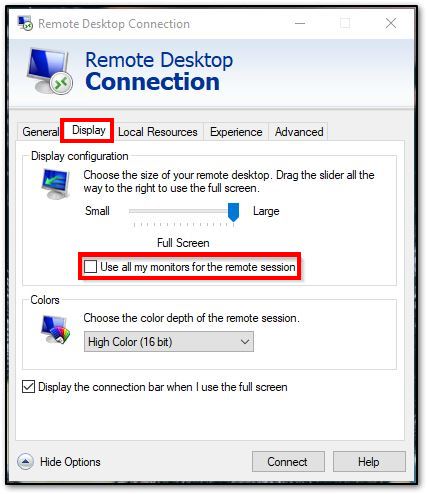
Click the Display tab.
-
Select the option Use all my monitors for the remote session.
-
On the General tab, select Save (optional, but prevents having to make this selection again in the future on this machine).
Note The maximum resolution per screen is 1920 x 1080.
Mac
-
Launch the Microsoft Remote Desktop application, but do not log in to your saved Hosting on Rightworks desktop yet.
-
Click once on the desktop to select it, then, right-click on the desktop icon and choose Edit.
-
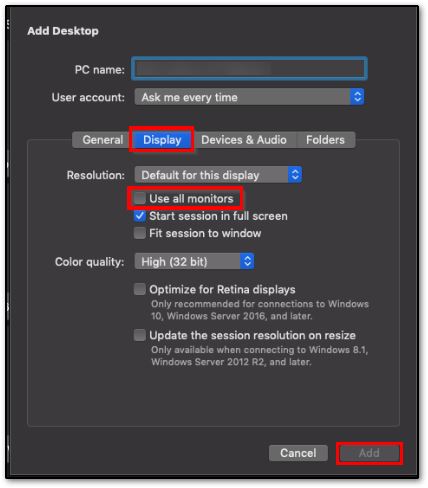
On the pop-up window, click on the Display tab.
-
Check the box Use all monitors.
-
Then click Add to save your changes.